Import local files
html.to.design can also import your local files directly into Figma and turn them into editable designs.
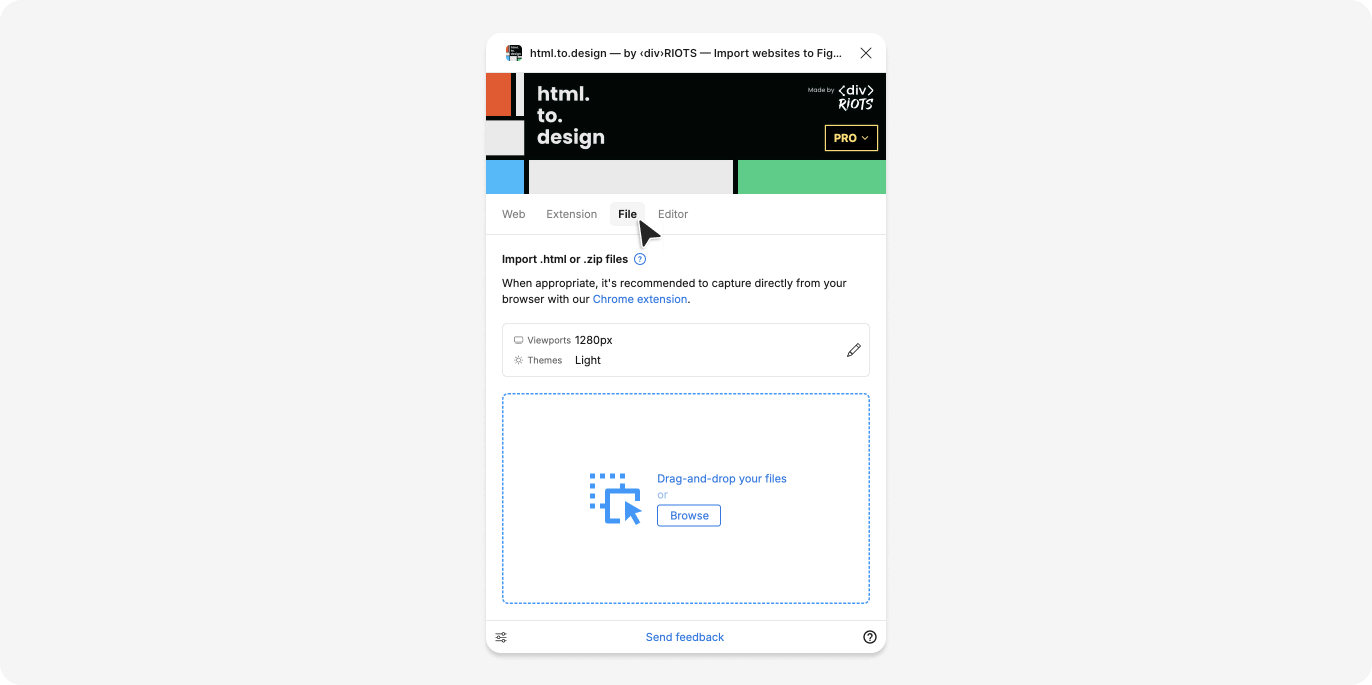
How to import HTML, .zip and email files into Figma
-
Select the
Filetab in the html.to.design plugin. -
Drag-and-drop your file into the drop zone or click on the drop zone to select a file from your computer.
Supported file types
.h2d
.h2d files are generated by the html.to.design browser extension.
ℹ️ This is the recommended file type to use, as it contains all the necessary information to recreate the webpage in Figma.
.html and .htm
These are standard HTML files. The plugin will render these HTML files and import them into Figma.
ℹ️ Your HTML files may contain references to external resources like images, CSS or JavaScript. The plugin will try to import these resources as well, but may not always be successful if they are not present or not available publicly.
We recommend to use the html.to.design browser extension in these cases.
.zip containing webpages
You can also import a .zip file containing all HTML, CSS, images and JavaScript. html.to.design will import all the webpages contained in the zip file.
.zip from Google Stitch
If you’re looking to bring your designs from Google Stitch to Figma, downloading and importing the generated .zip file is the preferred method for high quality results.
⚠️ Any zip file should be smaller than 32MB.
Email files .eml, .emlx and .msg
html.to.design also converts emails into editable Figma designs. Simply drop your email file (.eml, .emlx or .msg) into the File tab to automatically import the email into Figma.
.mhtml and .mht files
If you’re saving your webpages as a single file format (.mhtml and .mht), you can import them into Figma via html.to.design’s File tab.
Other file types
If you upload a file type that is not one of the ones mentioned above, the plugin will recommend alternative plugins to import them.
If you want to import a different file type, please let us know via email!