Copy a webpage and paste it into Figma
Last updated
The fastest way from a webpage to Figma: capture it with the html.to.design extension, click Copy, and paste it on your Figma canvas. No file to download, no plugin to open.
How to copy a webpage into Figma
- Open the page in your browser and click the html.to.design icon.
- Pick your viewports and themes, then click Capture Full Page (or capture a selection).
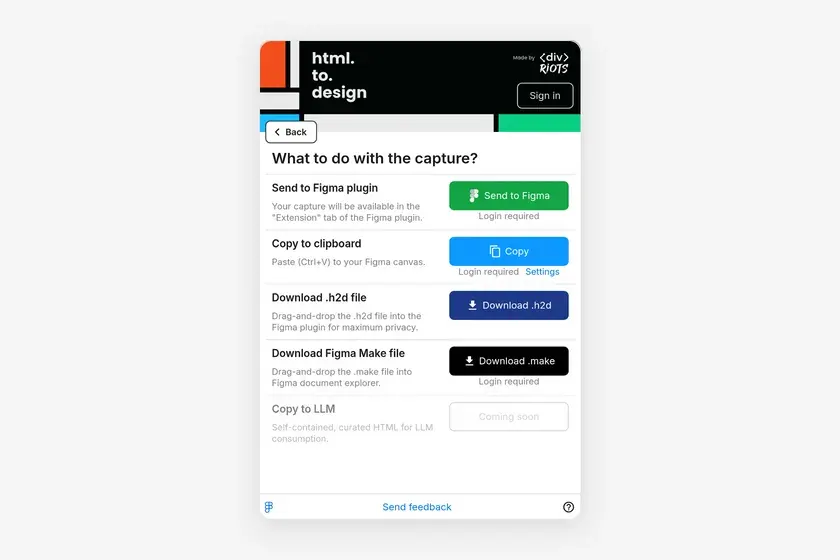
- On What to do with the capture?, click Copy next to Copy to clipboard.
- Switch to Figma and paste with ⌘V (Mac) or Ctrl+V (Windows).
The page arrives as editable Figma layers: frames, text layers with their fonts, images and vectors.
ℹ️ Copy to clipboard needs you to sign in to the extension, and each copy counts as one import.
Auto layout or absolute positioning
Click Settings under the Copy button to open Clipboard settings. With Autolayout on (the default), pasted content uses Figma auto layout instead of absolute positioning, so frames resize like the page does. Turn it off for layers placed exactly where they were on the page.
Copy vs. the other options
- Copy to clipboard: the quickest, for one page at a time.
- Send to Figma plugin: imports with the plugin’s import options, such as styles and variables, hover components, hyperlinks or high-res images.
- Download .h2d file: keeps the capture on your computer until you import it.
Frequently asked questions
Do I need the Figma plugin to paste a capture into Figma?
No. Copy to clipboard converts the capture into Figma's own clipboard format, so you paste it on any Figma Design canvas without opening the plugin.
Does copying a capture use an import?
Yes. Copy to clipboard converts the page on html.to.design's servers and counts as one import, so it needs you to sign in to the extension.
How do I paste without auto layout?
Click Settings under the Copy button, or the gear in the selection toolbar, and turn off Autolayout. Pasted layers then use absolute positioning.