Capture a webpage as a Figma code layer
Last updated
Capture as Code Layer is a capture mode of the html.to.design browser extension. Instead of converting the page into editable Figma layers, it copies the page itself (its HTML, CSS, images and fonts) to your clipboard. Paste it in a Figma Design file and Figma creates a live Code Layer: the page as it renders in a browser, right on your canvas.
It’s free and doesn’t need an html.to.design account. The capture runs in your browser: the page is never sent to our servers.
Code layer or editable layers?
Use Capture Full Page when you want to edit the design: it converts the page into frames, text, auto layout and Figma styles.
Use Capture as Code Layer when you want the page as it really is: CSS animations play, hover effects react, and the layout follows its own responsive breakpoints. It’s useful as a pixel-exact reference next to your designs, or to show the live page in a review.
How to capture a page as a code layer
- Install the browser extension if you haven’t already
- Open the page you want to capture and get it into the state you want (logged in, banner closed, menu open…)
- Open the extension and click Capture as Code Layer
- Wait for the capture: the extension scrolls through the page to load its lazy content, then takes the archive
- The code layer is copied to your clipboard. Paste it in a Figma Design file (
⌘+Von Mac,Ctrl+Von Windows)
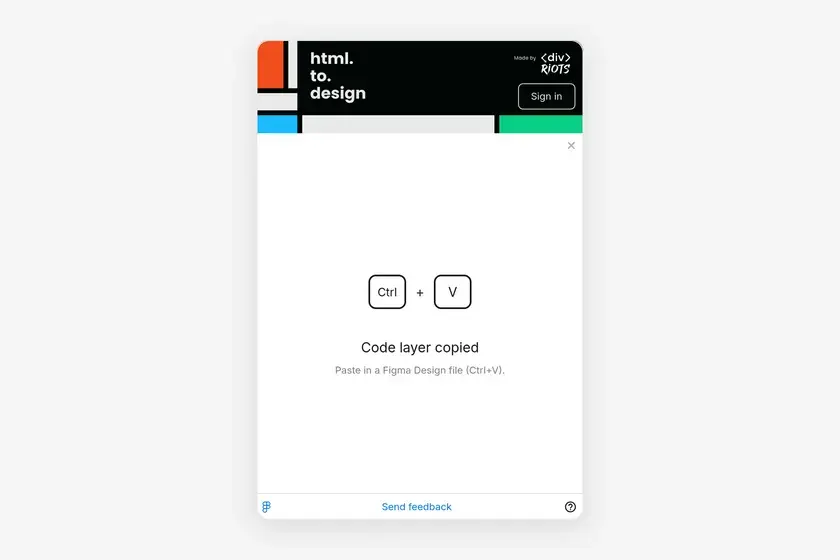
If the copy fails, click Copy on the result screen to try again.
What’s included
- The whole page, as it is in your tab at the time of the capture, pages behind a log-in included
- Lazy content: lazy-loaded images and sections are loaded before the capture
- Web fonts: the fonts the page uses are added to the archive, including fonts loaded by script
- Styles: stylesheets keep their CSS variables and media queries, so design tokens and breakpoints still work in Figma
- Animations and interactions in CSS: CSS animations keep running and
:hoverstyles still apply - Videos: a video file of 1 MB or smaller is embedded, and a muted one the page has played comes back playing
- Shadow DOM: web components keep their styles
Nothing the extension adds to the page while capturing (its toasts and overlays) ends up in the code layer.
Limitations
- Whole page only. A code layer always captures the entire tab: there’s no selection, viewport width or light/dark option. To change the width, resize the browser window before capturing.
- Not available on AI tool previews yet. On pages where the extension captures a preview inside the page (Figma Make, v0, Bolt, Lovable, Claude, ChatGPT and the other supported AI tools), the button is greyed out and shows Not on previews yet. Open the preview in its own tab, on its own URL, to capture it as a code layer.
- A snapshot, not the live site. The page’s own JavaScript isn’t part of the archive: what a script does on click (menus, carousels, forms, data loading) doesn’t run in Figma. The page is captured as it was when you clicked.
- Large videos stay online. A video over 1 MB is not embedded: it keeps loading from the website. A streamed video (HLS, for instance), or a large video created by the page’s script, shows its poster, or else its current frame, as a still image.
- Size limit. The page must fit in 48 MB. A heavier page fails with Page too large for a code layer.
- Fonts that can’t be downloaded are left out and fall back to another font.
- Keep the tab on the page while capturing. If the page navigates or reloads during the capture, it stops with The page changed during capture, try again.
- Saved web archives can’t be captured again. A
.mhtor.mhtmlfile open in Chrome shows This page is already a web archive.
A code layer goes to your clipboard only: it isn’t saved as an .h2d file or sent to the html.to.design Figma plugin. Once the capture is done, capture the page again if you need another copy.
Frequently asked questions
What is the difference between a code layer and a regular capture?
A regular capture turns the page into Figma layers you edit one by one. A code layer keeps the page as live HTML inside Figma: it looks like the page, but its content isn't split into Figma layers you can edit.
Can I capture an AI-generated preview as a code layer?
Not yet. Code layers capture the whole tab, so the button is disabled on detected AI previews and shows Not on previews yet.