How to import AI-generated websites from Qwen to Figma
Qwen is Alibaba’s AI assistant — and tucked inside it is a dedicated Web Dev mode that turns a plain-text description into a fully rendered, working front-end, right in your browser. Type what you want, and Qwen generates the HTML, CSS, and JavaScript to match: structured layouts, styled components, responsive code, no setup required. The gap? Taking that generated page out of Qwen and into Figma, where you can properly refine it, share it with stakeholders, and plug it into your design workflow.
html.to.design closes that gap. Pair the html.to.design Chrome extension with the Figma plugin, and you can take your Qwen-generated page straight from the browser into Figma as fully editable layers — spacing, colors, typography and all.
From Qwen to Figma — Quick Guide
- Open qwen.ai and use Web Dev mode to generate a webpage from a prompt
- Render the live preview of your webpage
- Capture the page with the html.to.design Chrome extension
- Complete the import using the html.to.design Figma plugin
- Your Qwen design arrives in Figma as layered, editable frames — ready to redesign further
What is Qwen?
Qwen (short for Tongyi Qianwen) is a family of large language models built by Alibaba Cloud. The Qwen Chat interface at qwen.ai gives you access to the latest models — including Qwen3 — for everything from research and writing to coding and creative tasks.
One of its standout features for designers and builders is Web Dev: a mode inside Qwen Chat that takes a natural language description and returns a complete, styled webpage with a live preview. Prompts like “build a landing page for a fitness app” or “create a contact form with a card layout” produce structured, working front-end code — no framework setup, no terminal, just a rendered result you can see immediately in the browser.
html.to.design picks up from there. Rather than reading raw code, it captures the live page as rendered — every layout decision, spacing value, and visual detail — and converts it into a clean set of Figma layers you can actually work with.
How to import from Qwen to Figma: Step-by-step
Step 1: Generate your page in Qwen Web Dev
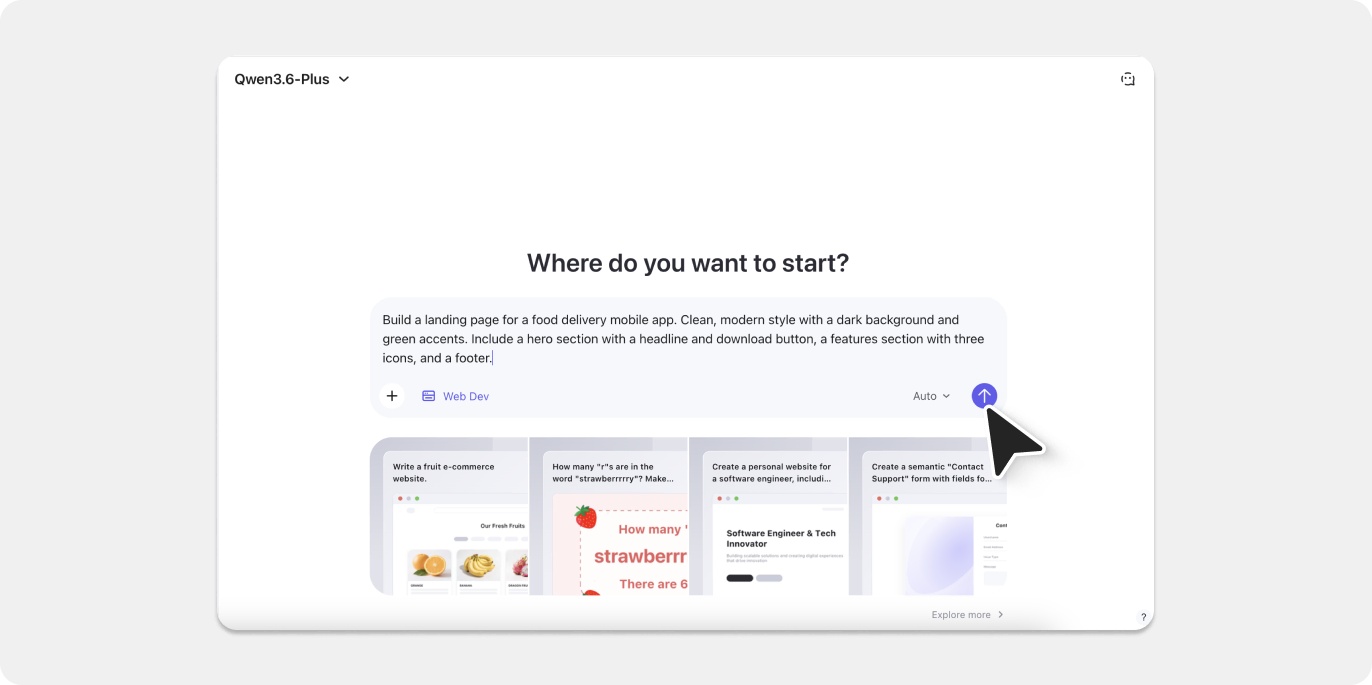
Go to qwen.ai and open a new chat. Switch to Web Dev mode, then describe the page you want to build. Be clear about the type of page, its purpose, and any visual direction you have in mind — the more specific the prompt, the closer the output to what you’re after. For this guide, we used:
“Build a landing page for a food delivery mobile app. Clean, modern style with a dark background and green accents. Include a hero section with a headline and download button, a features section with three icons, and a footer.”
Qwen processes the prompt and renders a live, styled preview directly in the chat panel — a real webpage you can scroll and inspect without leaving the browser.
Step 2: Let the preview render in full
Once Qwen has finished generating, make sure the live preview is fully loaded and visible on screen. There’s nothing to export or download at this stage — html.to.design reads directly from whatever is rendered in your active browser tab.
💡 First time? Install both the html.to.design Chrome extension and the html.to.design Figma plugin before you start.
Step 3: Capture with the html.to.design Chrome extension
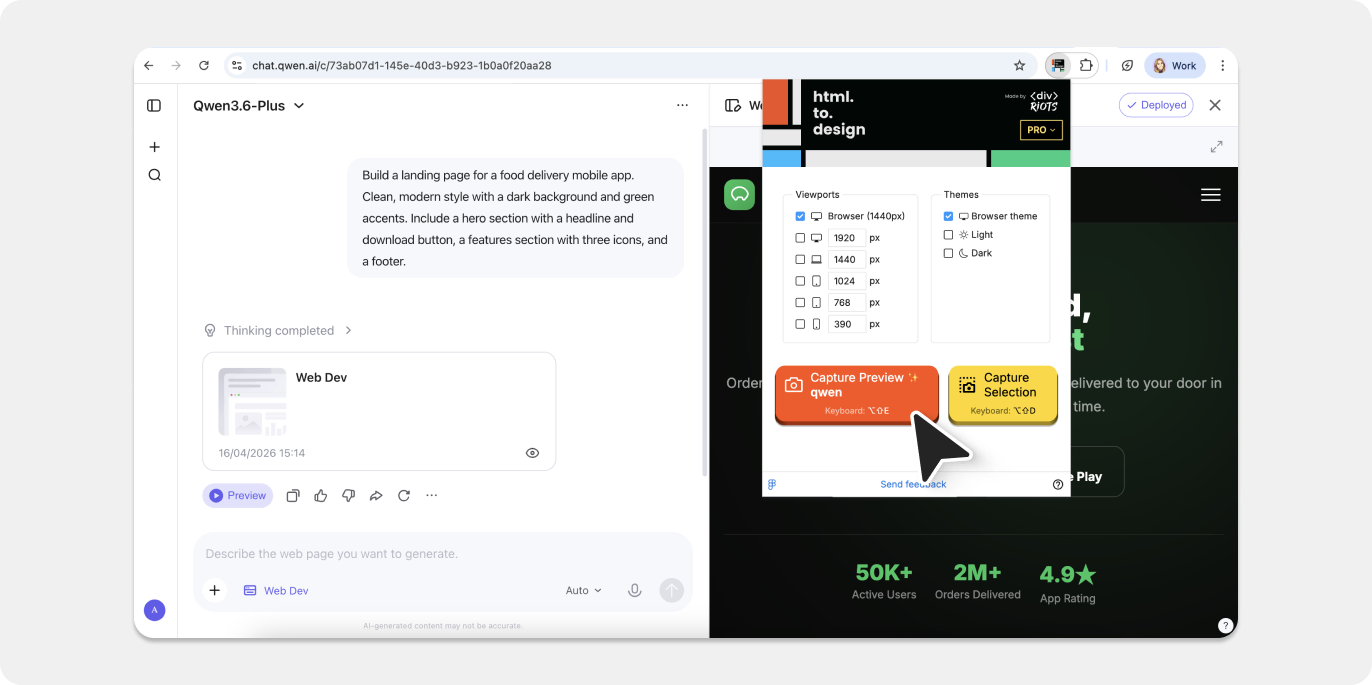
With the Qwen preview on screen, click the html.to.design icon in your Chrome toolbar. The extension popup will open — pick your target viewport (desktop, tablet, or mobile) and press Capture.
When the next screen appears asking how to handle the result, you have four options to choose from. “Send directly to Figma plugin”, for example, will route the design straight into the plugin.
The extension reads the page’s live HTML and CSS, so the capture reflects exactly what you see — no compression, no approximation.
💡 Pro tip: You can also use the new “Copy to clipboard” option to directly paste (Cmd+V) your design in Figma.
Step 4: Pull the design into Figma
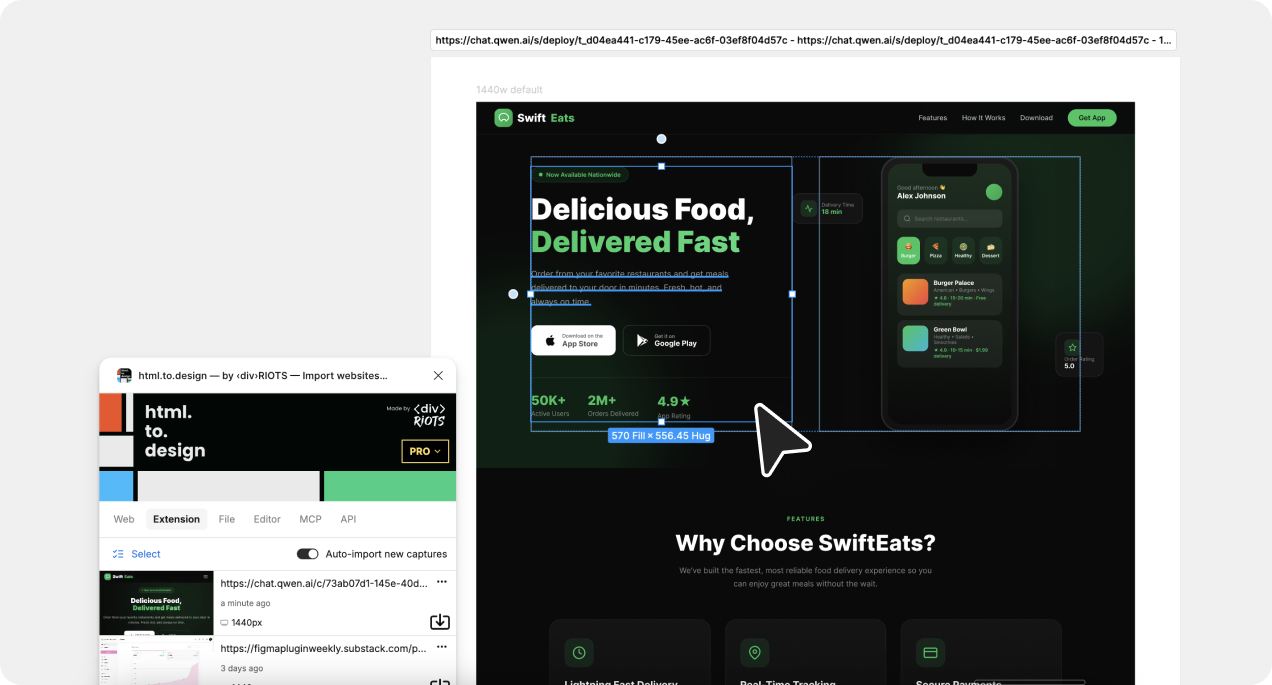
Head to Figma and open the html.to.design plugin. Your captured design will be ready under the Extension tab. Click the import icon and within moments your Qwen-generated page becomes a set of layered, editable Figma frames.
Nothing to download, no file juggling. The conversion runs entirely in the background.
Step 5: Refine and build in Figma
The design is now yours to work with however you like. Rework text layers, update colors, tighten spacing, add auto-layout, swap in real assets, connect to your component library, or prep the file for developer handoff — all inside your normal Figma workflow, without touching the underlying code.
Why move Qwen designs into Figma?
Hit the ground running
Qwen’s Web Dev mode takes care of structure and visual hierarchy from the first prompt. You skip the blank-canvas phase entirely and arrive in Figma with a real, styled layout already in place — whether you’re pressure-testing a concept or kicking off a full design pass.
Nothing is locked
Every element that comes through html.to.design is completely editable in Figma. Clean vectors, live text layers, proper frames — no flattened rasters or frozen groups standing between you and your refinements.
Explore directions faster
Run a handful of different prompts in Qwen, import the most promising results, and compare them side by side in a single Figma file. Concept exploration that used to take a full afternoon can happen in a fraction of the time.
Bring your team along
Once the design is in Figma, it fits straight into your existing review workflow. Share with clients, invite comments, iterate together in real time — Qwen’s AI output fits directly into the collaborative process without any extra friction.
Try it out
Open qwen.ai, switch to Web Dev, describe your page, then grab the result with the html.to.design extension and take it into Figma.
With Qwen and html.to.design, a text prompt can become a fully editable Figma file in under a minute.
Qwen is one of many AI tools that pair seamlessly with html.to.design. Check out guides for Magic Patterns, Kimi, Lovable, Claude AI, and more.
FAQ
Q: Do I need a paid Qwen plan for this to work?
A: No. The html.to.design extension captures whatever is rendered in your browser preview, so it works regardless of which Qwen tier you’re on.
Q: What makes this different from copying the code out of Qwen?
A: Exported code is a starting point for developers — it needs a build environment and a browser to become something visual. html.to.design captures the rendered result and converts it into Figma layers, so designers can keep iterating without ever opening a code editor.
Q: Will the fonts come through correctly?
A: html.to.design preserves font information during the import. Google Fonts and standard web-safe typefaces will render correctly in Figma. For less common fonts, you may need to install them locally in Figma after the import completes.
Q: Can I capture just one section of the generated page?
A: Yes. The html.to.design extension has a built-in selection tool that lets you target any specific area of the page — handy when you only want to pull in a hero section or a single UI component rather than the whole layout.