How to export Claude Design projects to Figma before the migration deadline
The standalone Claude Design site at claude.ai/design closes on December 14, 2026. Anthropic is migrating Claude Design into Claude, but as of October 2026 the migration doesn’t move the projects you built on the standalone site. After that date, those originals are deleted along with your chats and comments, and public project links stop working (Anthropic’s migration guide). Claude Design exports to .zip, PDF, PPTX, standalone HTML, Canva and a dozen other tools, but not to Figma (Claude Design export options). Figma’s own importer handles .fig, .sketch, .pptx, PNG and JPG files, not HTML or zipped web projects (Figma’s supported import formats).
This guide shows how to bring a Claude Design project into Figma as editable layers with html.to.design, our Figma plugin for HTML-to-Figma conversion: download the project’s HTML as a .zip file and drop it into the Figma plugin.
Claude Design migration: what happens to your projects on December 14
Claude Design now runs inside Claude as an artifact template, in chats, the Artifacts tab, Claude Code and mobile apps, on every plan including Free. After December 14, claude.ai/design redirects to Claude. Here is what the migration means for your work:
- Projects stay in the standalone version and keep working until December 14, then get deleted. The Artifacts page in Claude lists up to 60 of them, but they still open in the standalone version. Anthropic says details on moving projects into Claude are coming, without giving a date.
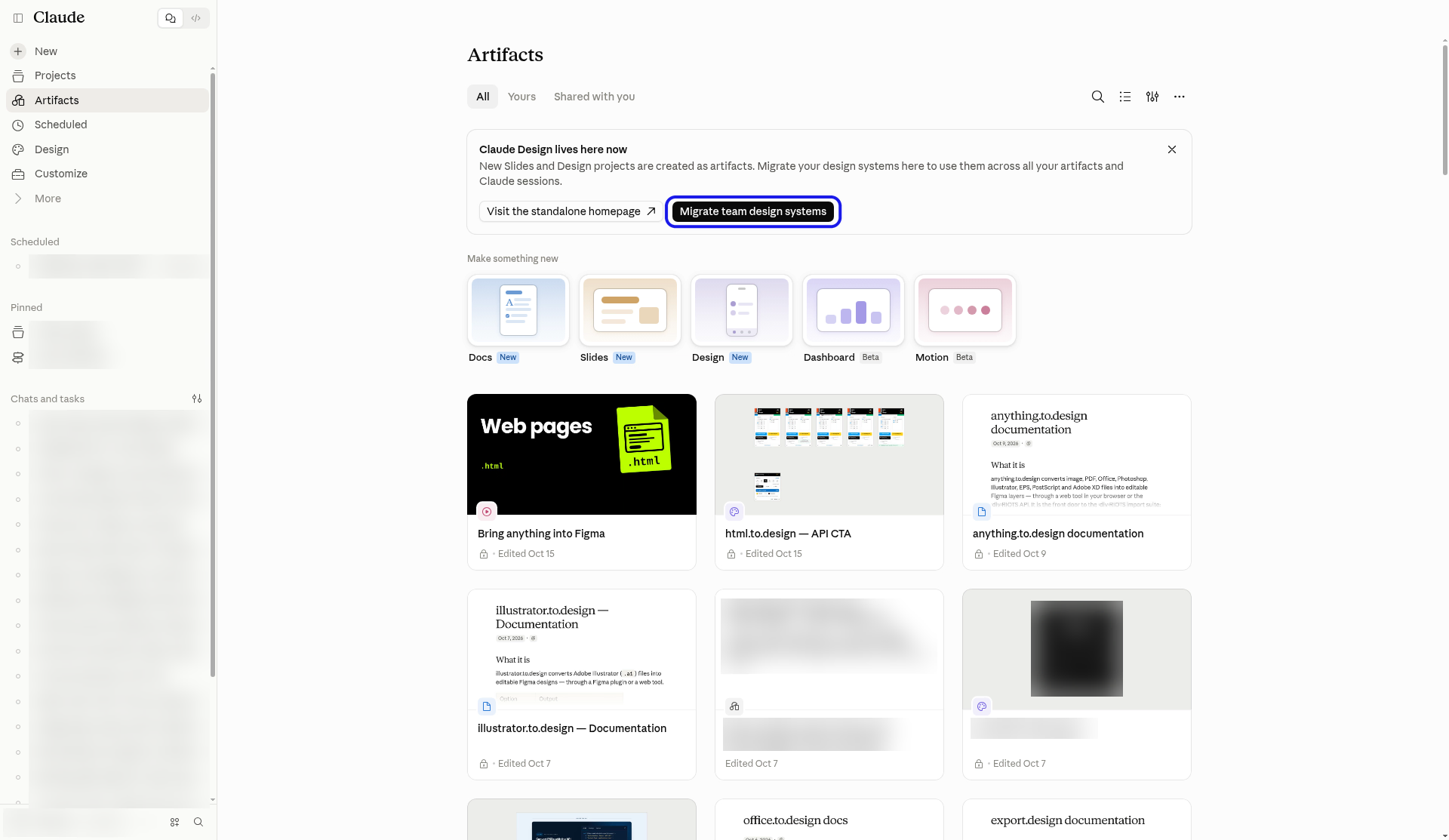
- Design systems move with a migration tool. Open the Artifacts page in Claude and click “Migrate team design systems”; one run covers every design system in your organization.
- Chats and comments are not carried over and are deleted after December 14. Copy out anything you need.
- Public links to standalone projects stop working.
- Zero data retention (ZDR) organizations can’t turn on artifacts, so Anthropic tells them to download projects before December 14.
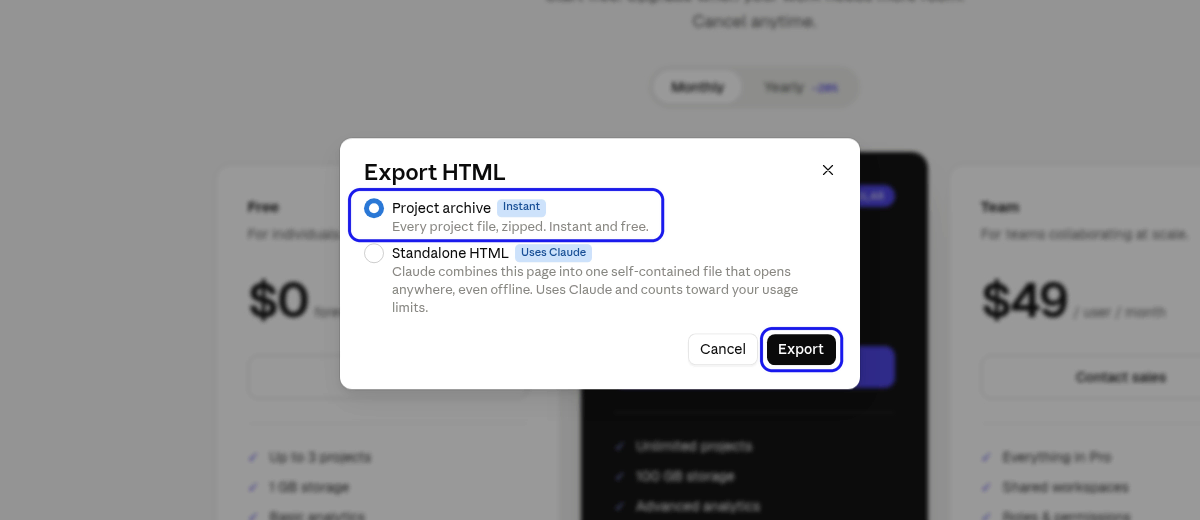
A Project archive is the
.zipfile Claude Design exports from its Export HTML dialog: every file in the project, zipped.
Quick guide: export Claude Design to Figma
- In claude.ai/design, click Share, then Project HTML.
- Keep Project archive selected and click Export to download the
.zip. - Open the html.to.design plugin in Figma and select the File tab.
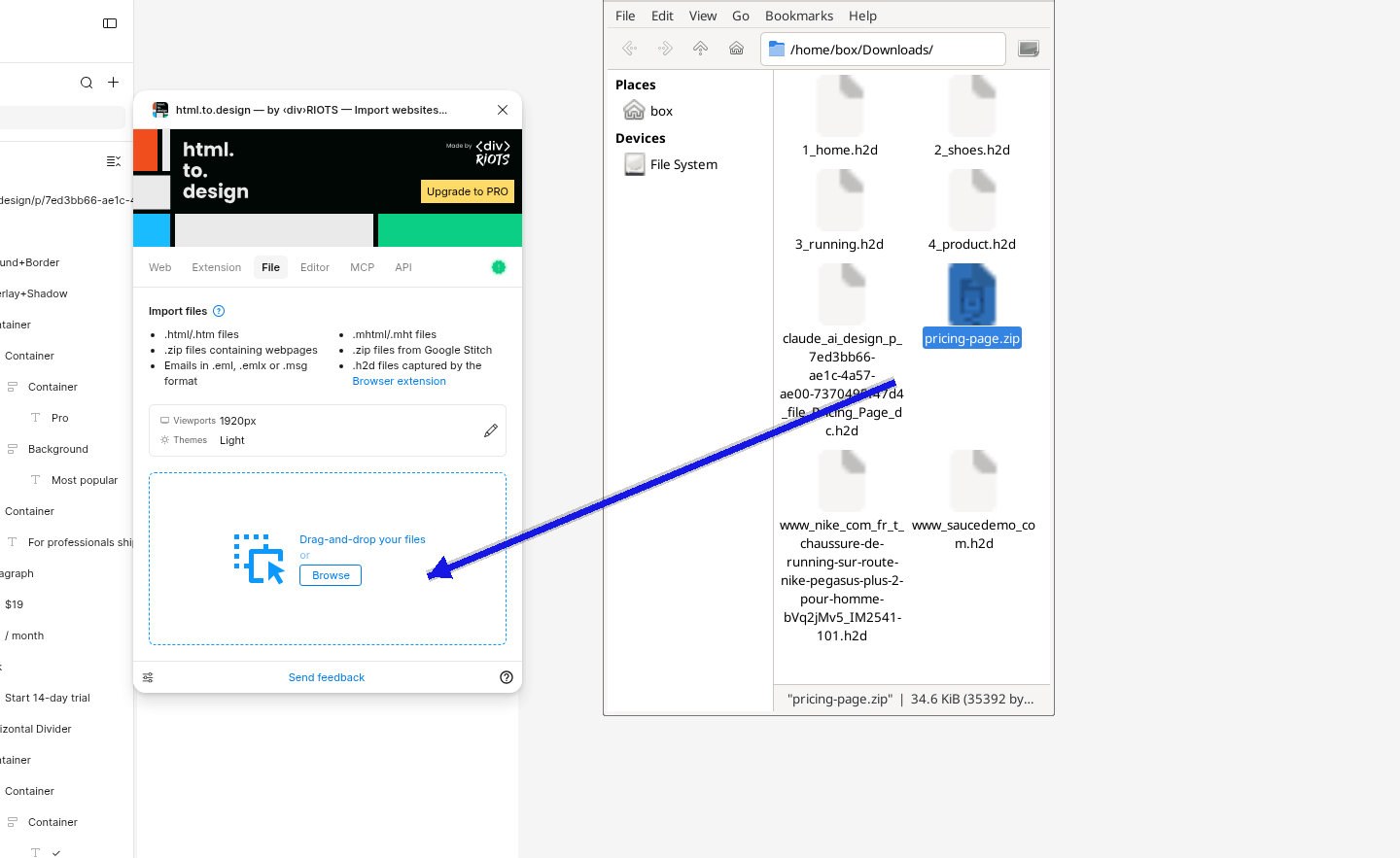
- Drag the
.zipinto the drop zone to import every page as editable layers.
Download the Claude Design .zip and drop it into the Figma plugin
This imports the project’s HTML files directly. Download the project’s .zip file before December 14: once you have it, the import into Figma works without the standalone site.
Step 1: Export the Project archive from claude.ai/design
Open the project at claude.ai/design. Click Share and choose Project HTML. For a slide deck, the option sits under More formats and apps. In the Export HTML dialog, keep Project archive selected and click Export. You get a .zip containing every file in the project. Our one-page test project exported as a 35 KB .zip file.
Anthropic doesn’t offer a bulk download, so you’ll need to export projects one at a time. Name each .zip after its project: that name appears in the Figma frame name.
Step 2: Open the html.to.design plugin in Figma
In Figma, go to Plugins and run html.to.design. Select the File tab.
Step 3: Drag the .zip into the drop zone
Drag your Project archive .zip into the drop zone, or click Browse to pick it. The plugin imports every webpage contained in the .zip file as editable Figma layers (supported file types). Above the drop zone, check the Viewports and Themes settings and click the pencil icon to change them.
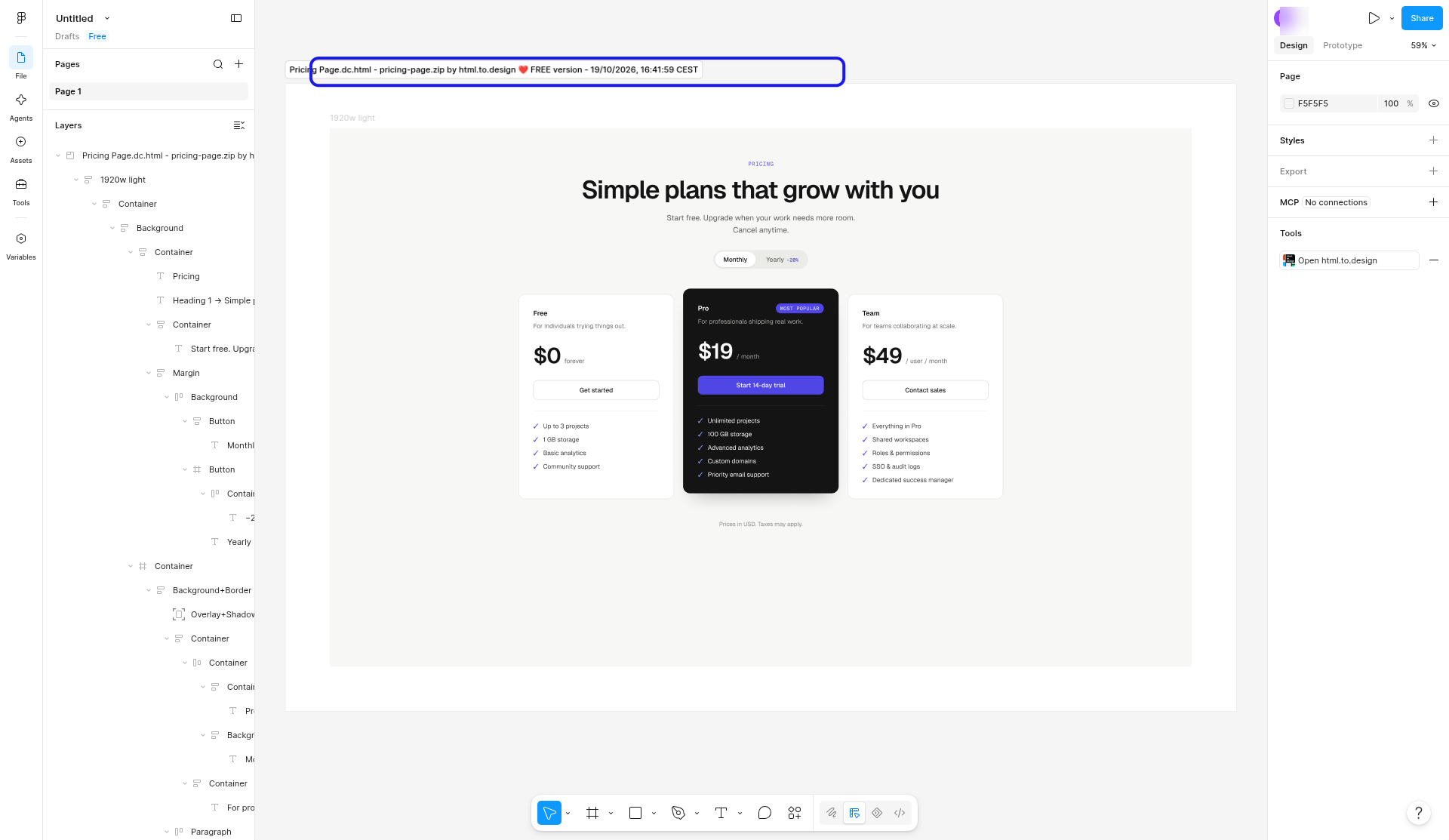
Our test archive came in as one frame named after its HTML file and .zip, with a 1920w light frame inside holding the full page as editable layers.
Step 4: Check fonts and assets
Google Fonts and web-safe fonts render in Figma right away. Less common fonts need to be installed locally (fixing missing fonts).
When an HTML file references images, CSS or scripts that aren’t in the file, the plugin tries to fetch them, and that fails if the resource isn’t publicly available.
Alternative method: export Claude Design slide decks as PPTX or PDF
For slide decks, Claude Design also exports PPTX and PDF, which gives you two extra routes into Figma.
PPTX. Figma’s file browser imports PowerPoint (.pptx) files directly. For conversion into editable Figma Slides, run office.to.design in a Figma Slides file. Our PowerPoint to Figma Slides guide covers both.
PDF. pdf.to.design converts each PDF page into editable Figma layers (PDF to Figma guide). The PDF route converts an export of the design rather than its HTML, so use it as a fallback when the HTML export isn’t available.
What gets converted from Claude Design to Figma
Claude Design projects are built in HTML, CSS and JavaScript, so html.to.design converts the rendered page the same way it converts any webpage.
Layers, text and styles
- Layer hierarchy matches the HTML structure of the page.
- Auto layout is applied to flex and grid containers when you enable it in the import settings.
- Text stays fully editable, and fonts are mapped to the fonts available in Figma.
- Colors become local Figma styles.
- Images and SVGs come in as fills or separate layers.
- Hover effects import as components.
Gradients, grids and motion values
- Gradients, including conic, repeating and off-center radial gradients, match the browser render.
- CSS grid layouts using auto-fit or auto-fill become Figma grids with real grid structure.
- Transition durations and easing values import as Figma variables.
Limitations
- Animations don’t transfer, because Figma doesn’t run CSS animations.
- Custom fonts need to be installed in Figma before they render.
Benefits of exporting Claude Design to Figma with html.to.design
Editable layers instead of screenshots. Every import lands as frames, text layers and local styles, not a flat image.
Backups that outlive the standalone site. The Project archive .zip imports into Figma without claude.ai/design.
Free to start. Project archive exports are free, and html.to.design includes free imports every month.
Works with the new Claude Design too. The html.to.design Chrome extension captures designs you create inside Claude from the artifact preview (importing Claude artifacts into Figma).
Export your Claude Design projects before the December 14 migration deadline
Download the Project archive .zip for every project you want to keep and drop it into the html.to.design Figma plugin. It takes a few seconds per project and it’s the only copy of your source files that survives the standalone site.
Install the html.to.design Figma plugin. html.to.design is built by ‹div›RIOTS, the team behind the import plugins for PSD, PDF, Illustrator and Office files in Figma.
FAQ
Q: Is Claude Design shutting down?
A: No. Only the standalone site at claude.ai/design closes, on December 14, 2026. Claude Design keeps running inside Claude, where new designs are created as artifacts.
Q: Does the Claude Design migration move my projects to Claude?
A: No, not as of October 2026. Anthropic says projects stay in the standalone version until December 14 and that details on moving them into Claude are still to come. Originals are deleted after December 14, so download any project you need, one at a time.
Q: Does Claude Design export directly to Figma?
A: No. Claude Design exports to .zip, PDF, PPTX, Google Slides, standalone HTML and tools like Canva, but Figma isn’t on the list. Use html.to.design to import its Project archive .zip file.