How to import AI-generated sites from Deepseek into Figma
DeepSeek is one of the most capable AI models available today — and it’s surprisingly good at generating fully structured, styled websites from a simple text prompt. Ask it to build a landing page, a dashboard UI, or a product screen, and it’ll produce clean HTML, CSS, and JavaScript with a live preview right inside the chat window. The issue comes when we need to get our generated design out of DeepSeek and into Figma for proper refinement, team review, or handoff.
That’s where html.to.design comes in. Combine the html.to.design Chrome extension with the Figma plugin, and you can capture your DeepSeek-generated page exactly as it appears in the browser — then bring it straight into Figma as fully editable layers. Here’s how it works:
From DeepSeek to Figma — Quick Guide
- Open deepseek.com and prompt it to generate a website or UI
- Open the live preview in your browser
- Capture the page using the html.to.design Chrome extension
- Finish the import with the html.to.design Figma plugin
- Your DeepSeek design lands in Figma as fully editable, layered frames — ready to refine
What is DeepSeek?
DeepSeek is an AI assistant developed by a Chinese AI research lab of the same name. Built on the DeepSeek-V3 model family, it gained widespread attention in early 2025 for matching the performance of leading proprietary models while remaining open-weight and free to use. Beyond answering questions and writing code, DeepSeek is particularly strong at front-end generation — give it a description of a page or UI, and it produces structured, responsive HTML with real layouts, styled components, and working code.
Unlike purpose-built website builders, DeepSeek generates sites conversationally. You describe what you want, it renders a live preview, and you can keep refining with follow-up prompts — all without leaving the chat. It’s fast, flexible, and free.
html.to.design handles the final step. By reading the live HTML and CSS rendered in your browser, it captures everything exactly as DeepSeek produced it — every spacing rule, color value, and typographic detail — and converts it into editable layers inside Figma.
How to import from DeepSeek to Figma: Step-by-step
Step 1: Generate your website in DeepSeek
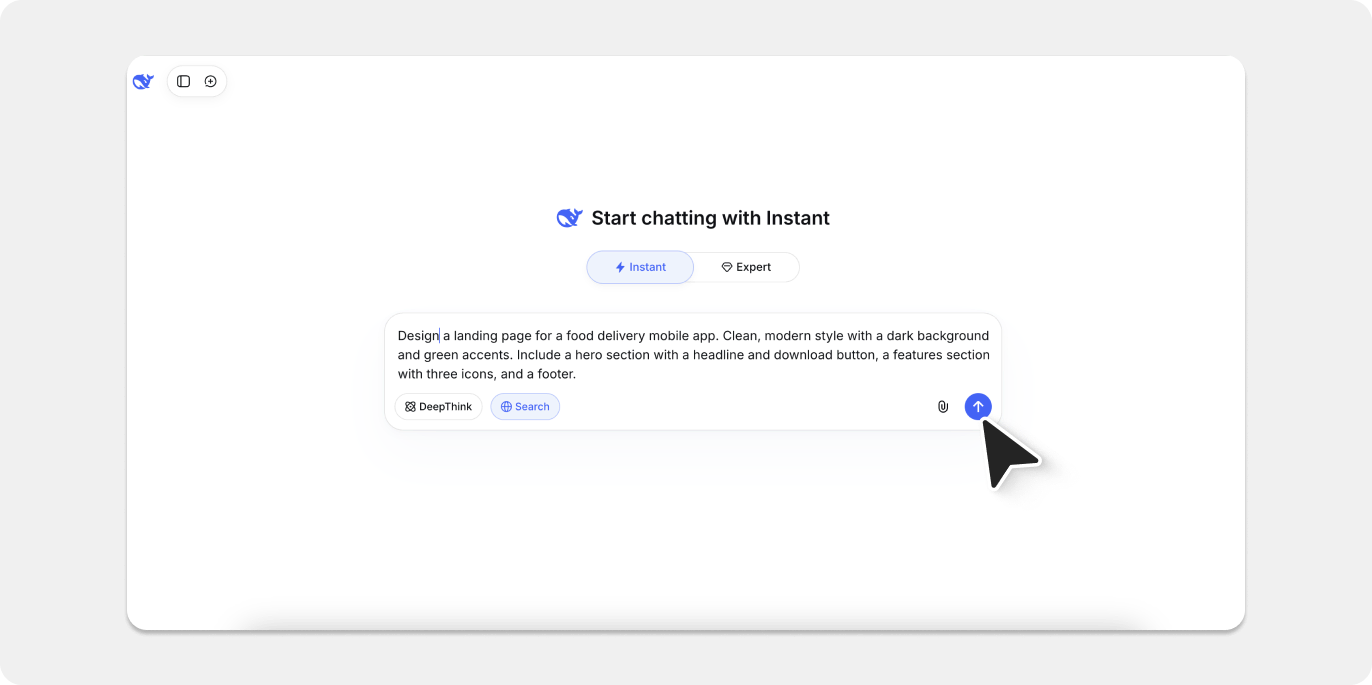
Head to deepseek.com and open a new chat. Describe the page you want to build — the more detail you give about layout, purpose, and visual style, the closer the output will be to what you have in mind. For this guide, we used:
“Design a landing page for a food delivery mobile app. Clean, modern style with a dark background and green accents. Include a hero section with a headline and download button, a features section with three icons, and a footer.”
DeepSeek processes the prompt and returns a live, styled page — rendered directly in the chat preview panel, ready to view in the browser.
Step 2: Open the preview in your browser
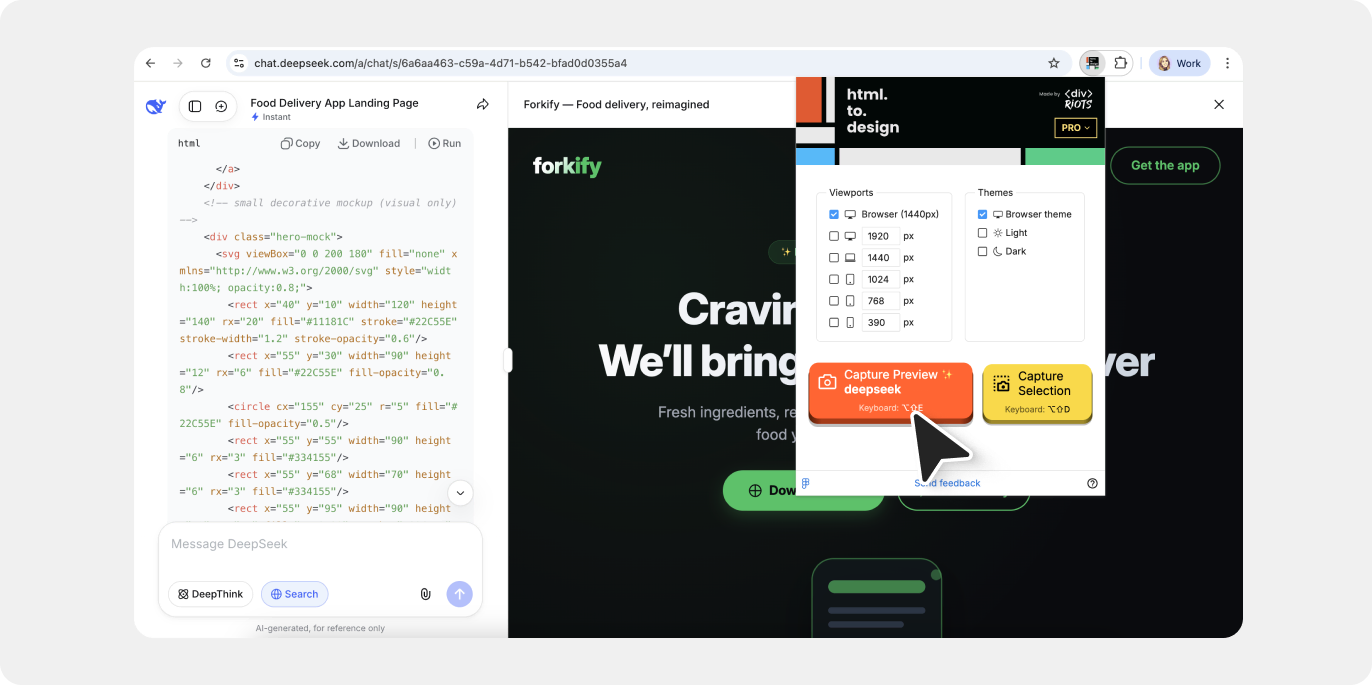
Once DeepSeek has generated the HTML for the page, make sure to click ‘Run’ in the top right corner to launch the live preview of your webpage. You don’t need to export code or copy anything — html.to.design reads directly from whatever is displayed in your browser, so the preview being open is all you need.
💡 First time importing? Make sure you’ve installed both the html.to.design Chrome extension and the html.to.design Figma plugin before getting started.
Step 3: Capture with the html.to.design Chrome extension
With the DeepSeek preview open on screen, click the html.to.design icon in your Chrome toolbar. The extension popup will appear — select your viewport (desktop, tablet, or mobile) and hit Capture.
When asked what to do with the capture, choose “Send directly to Figma plugin” to push the design straight into the html.to.design Figma plugin.
The extension reads the live HTML and CSS as rendered — so what you see is exactly what you get in Figma.
💡 Pro tip: You can also use the new “Copy to clipboard” option to directly paste (Cmd+V) your design in Figma.
Step 4: Import your DeepSeek design to Figma
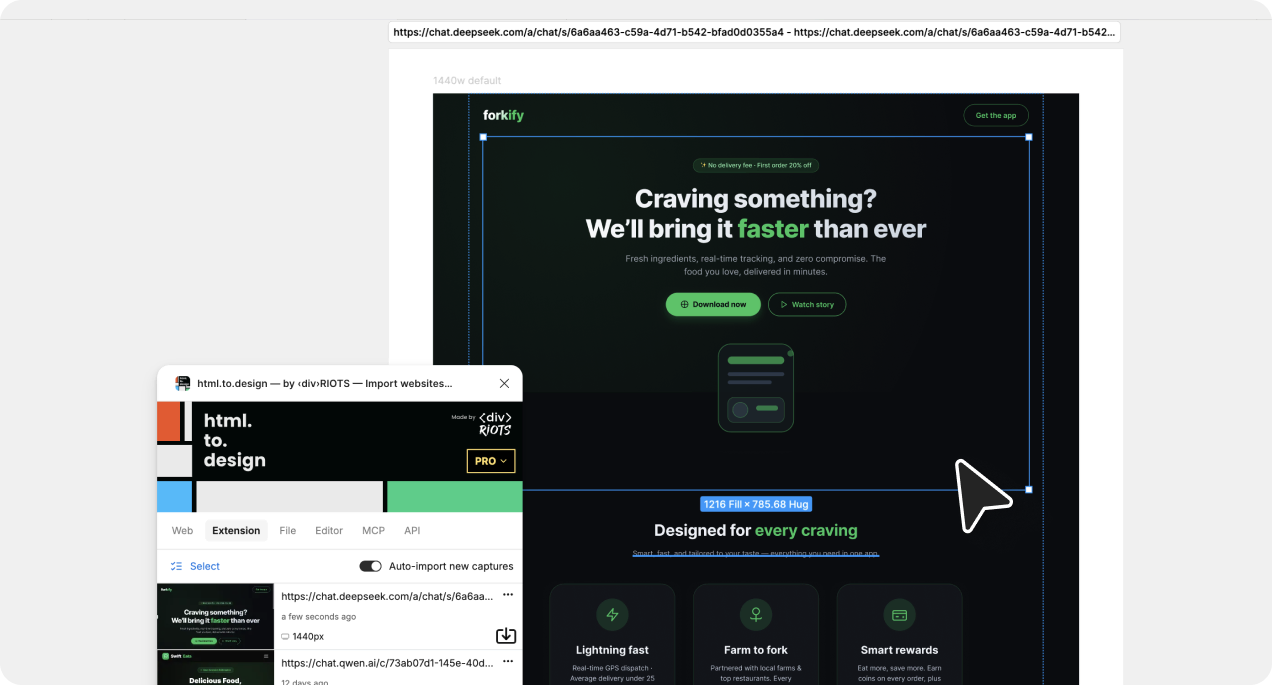
Switch to Figma and open the html.to.design plugin. Your captured design will be ready and waiting under the Extension tab. Hit the import icon, and in seconds your AI-generated page is converted into layered, editable Figma frames.
💡 Pro tip: Keep the html.to.design Figma plugin open while you capture in the browser, and the import will kick off automatically the moment the capture completes.
Step 5: Edit and refine in Figma
From here, the design is entirely yours. Edit text layers, adjust colors, rework spacing, apply autolayout, swap in brand assets, or wire up your component library — all within your normal Figma workflow, without touching a single line of code.
Why bring DeepSeek designs into Figma?
A faster starting point
DeepSeek takes care of the structure, copy, and visual layout in seconds. Instead of starting with an empty canvas, you arrive in Figma with a real, styled page already in place — a significant head start whether you’re exploring a new concept or building toward a final design spec.
Full editing control
Everything imported via html.to.design is completely unlocked in Figma. Clean frames, vectors, and text layers — no flattened images, no locked groups — ready for whatever refinements you need to apply.
Quick iteration
Try several different prompts in DeepSeek, import the strongest results into Figma, and compare them side by side. Exploring layout directions that would take hours to build manually can be done in minutes.
Plug into your team workflow
Once the design is in Figma, you can share it with stakeholders, collect comments, and iterate in real time — slotting DeepSeek’s AI output directly into your team’s existing review and approval process.
Try it out
Generate a design at deepseek.com, capture it with the html.to.design extension, and take it further in Figma.
With DeepSeek and html.to.design, you can go from a text prompt to a fully editable Figma file in under a minute.
DeepSeek is one of many AI tools that work seamlessly with html.to.design. Check out guides for importing from Kimi, Lovable, Claude AI, and more.
FAQ
Q: Does this work with DeepSeek’s free plan?
A: Yes. The html.to.design extension captures whatever DeepSeek renders in the browser preview — no paid DeepSeek subscription required.
Q: Why not just export the code from DeepSeek directly?
A: Exporting code gives you HTML and CSS to build with — that’s a workflow for developers. html.to.design captures the live rendered page visually and converts it into editable Figma layers, so designers can keep refining without ever opening a code editor.
Q: What about fonts used in the generated page?
A: html.to.design preserves font metadata during the import. Google Fonts and standard web-safe fonts will come through correctly in Figma. For less common typefaces, you may need to install them locally in Figma before importing the webpage.
Q: Can I import just part of a DeepSeek-generated page?
A: Yes. The html.to.design extension includes a selection tool that lets you target any specific area of the page — ideal for pulling in a single section or component without importing the entire layout.