How to import web designs from Anything.com to Figma
Anything.com lets you build fully designed, production-ready websites from a simple text description — no code required. Just describe what you need, and the AI generates a live, styled web page right in your browser, complete with layouts, typography, color schemes, and imagery. The tricky part? Getting that design into Figma for further refinement, team collaboration, or developer handoff isn’t immediately obvious.
That’s exactly what html.to.design is built for. Using the html.to.design Chrome extension paired with the Figma plugin, you can capture your Anything.com design as it renders live in the browser and pull it straight into Figma as fully editable layers — no screenshots, no manual rebuilding, no wrestling with exported code.
From Anything.com to Figma — Quick Guide
- Open Anything.com and generate a website design using a text prompt
- Preview your design in a full browser tab
- Capture the page using the html.to.design Chrome extension
- Finish the import with the html.to.design Figma plugin
- Your design lands in Figma as fully editable, layered frames — ready to refine
What is Anything.com?
Anything.com is an AI-powered web design tool that turns plain language prompts into complete, styled websites. Describe your product, your audience, and the vibe you’re going for, and the tool generates a polished web page — layouts, content, visuals, and all — in seconds. You can then continue refining through its conversational interface or visual editor, and when you’re satisfied, publish instantly or export the underlying code.
It’s a favourite among solo founders, freelancers, and small teams who need to move quickly from a rough idea to something that looks and feels finished. While Anything.com is focused on fast output, html.to.design bridges the gap to Figma by capturing the rendered page exactly as it appears — preserving every spacing value, font style, and color precisely as the browser displays it.
How to import from anything.com to Figma: Step-by-Step
Step 1: Generate your design in Anything.com
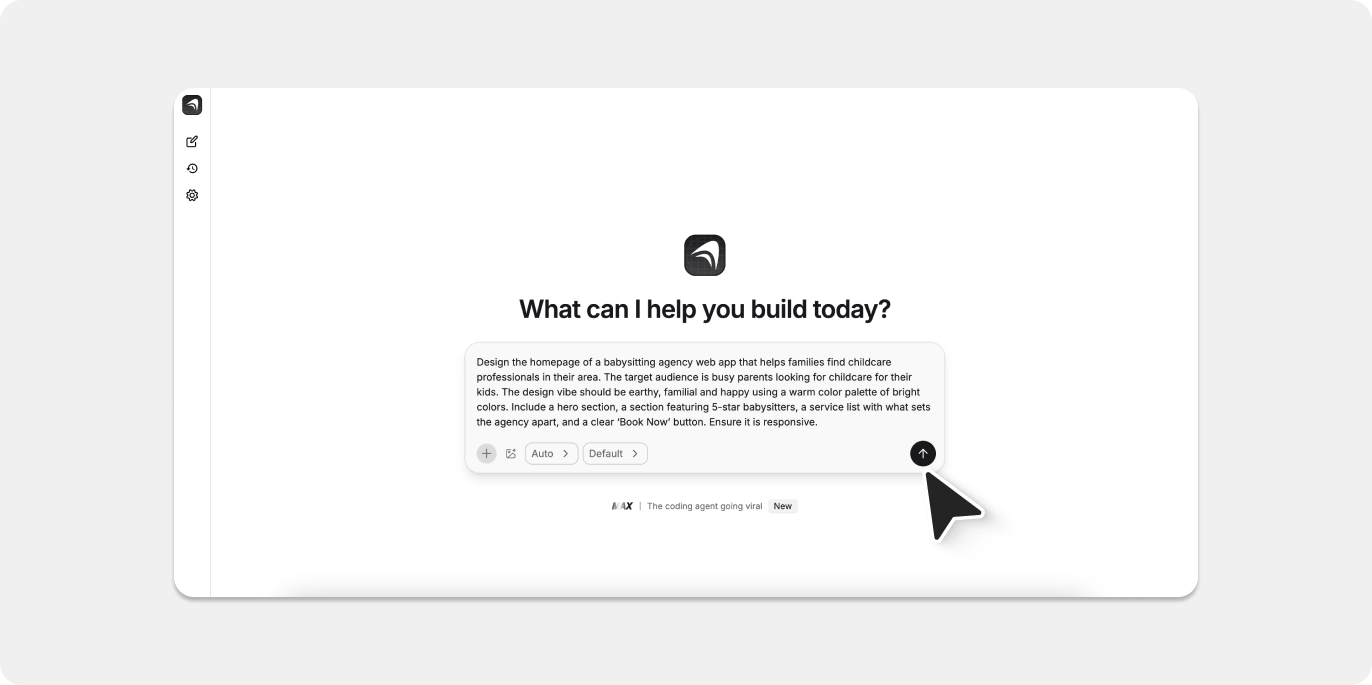
Go to Anything.com and start a new project. Enter a description of the site you have in mind — the more detail you include, the closer the result will be to what you’re envisioning. For the purposes of this guide, we used the following prompt:
“Design the homepage of a babysitting agency web app that helps families find childcare professionals in their area. The target audience is busy parents looking for childcare for their kids. The design vibe should be earthy, familial and happy using a warm color palette of bright colors. Include a hero section, a section featuring 5-star babysitters, a service list with what sets the agency apart, and a clear ‘Book Now’ button. Ensure it is responsive.”
Anything.com processes the prompt and renders a live, styled preview complete with generated imagery, placeholder copy, layout sections, and a cohesive visual theme.
Step 2: Preview your design
Once your design has rendered inside Anything.com’s editor, make sure it is open to the preview in the right side of the screen. Even if it isn’t open to full screen, html.to.design will still detect the generated site and capture it.
💡 First time? Make sure you’ve installed the html.to.design Chrome extension and the html.to.design Figma plugin before getting started.
Step 3: Capture with the html.to.design browser extension
With your Anything.com design open in the browser, click the html.to.design icon in your Chrome toolbar. The extension popup will open — select your target viewport (desktop, tablet, or mobile) and hit Capture.
When asked how to handle the capture, choose “Send directly to Figma plugin” to push the design straight into your active Figma file.
The extension reads the live HTML and CSS from the page, so every detail is captured exactly as rendered — no interpretation, no approximation.

Step 4: Import Readdy designs to Figma
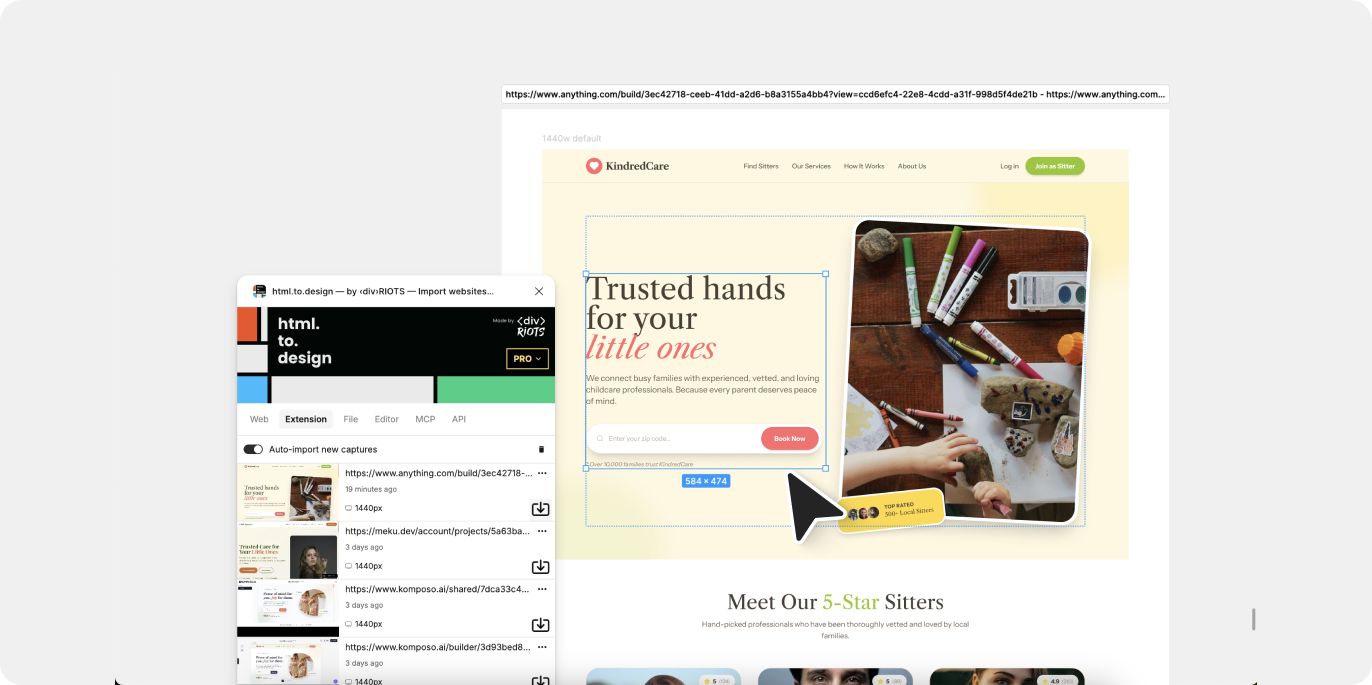
Jump over to Figma and open the html.to.design plugin. Your captured Anything.com design will be waiting under the Extension tab. Click the import icon and within moments your AI-generated page is converted into layered, editable Figma frames.
No downloads needed. No manual tracing. The entire process of web to Figma happens seamlessly in the background.
💡 Pro tip: Keep the html.to.design Figma plugin open while you capture in the browser, and the import will kick off automatically as soon as the capture completes.
Step 5: Edit in Figma
From here, the design is entirely yours to work with. Edit text layers, tweak colors, adjust spacing, apply auto-layout, swap in real brand assets, hook up components from your design system, or get the file ready for developer handoff — all within your existing Figma workflow.
Why import web designs from Anything.com into Figma?
Skip the blank canvas
Anything.com handles the heavy work of generating initial layouts and content. Rather than starting from scratch in Figma, you arrive with a visually complete design you can immediately build on — a huge advantage when exploring multiple directions early in a project.
Full editing control
Every element imported into Figma is fully editable. No locked groups, no flattened rasters — just clean frames and text layers ready for your refinements and brand polish.
Rapid iteration
Spin up several design variants in Anything.com, import the strongest contenders into Figma, and compare them side by side. Evaluating different directions takes minutes rather than hours.
Bring your team in
Figma’s collaboration tools let you share imported designs with stakeholders, collect feedback through comments, and iterate together in real time — slotting AI-generated concepts directly into your team’s existing workflow.
Try it out
Generate a design in Anything.com, grab it with the html.to.design Chrome extension, and take it further in Figma.
With Anything.com and html.to.design, you can go from a text prompt to a fully editable Figma file in under a minute.
Anything.com is one of many AI tools that work seamlessly with html.to.design. Also check out guides for importing from Readdy.ai, Lovable, Claude AI, and more.
FAQ
Q: Does html.to.design work with Anything.com’s free plan?
A: Yes. The html.to.design extension captures whatever Anything.com renders in your browser preview, regardless of which plan you’re on. No paid Anything.com subscription is required to use this workflow.
Q: How does this compare to exporting code directly from Anything.com?
A: Exporting code gives you the raw HTML and CSS to build with — but that’s a developer workflow, not a design one. html.to.design captures the live rendered page visually, converting it into editable Figma layers so designers can continue refining without touching code.
Q: What happens with custom or web fonts?
A: html.to.design preserves font metadata during import. Fonts loaded via Google Fonts or standard web-safe stacks will display correctly in Figma. For less common custom fonts, you may need to install them locally in Figma after importing.
Q: Can I capture just one section of the page rather than the whole thing?
A: Absolutely. The html.to.design extension includes a selection tool that lets you target specific areas of the page — handy for pulling in just a hero section, a pricing block, or a particular UI component without importing the entire layout.