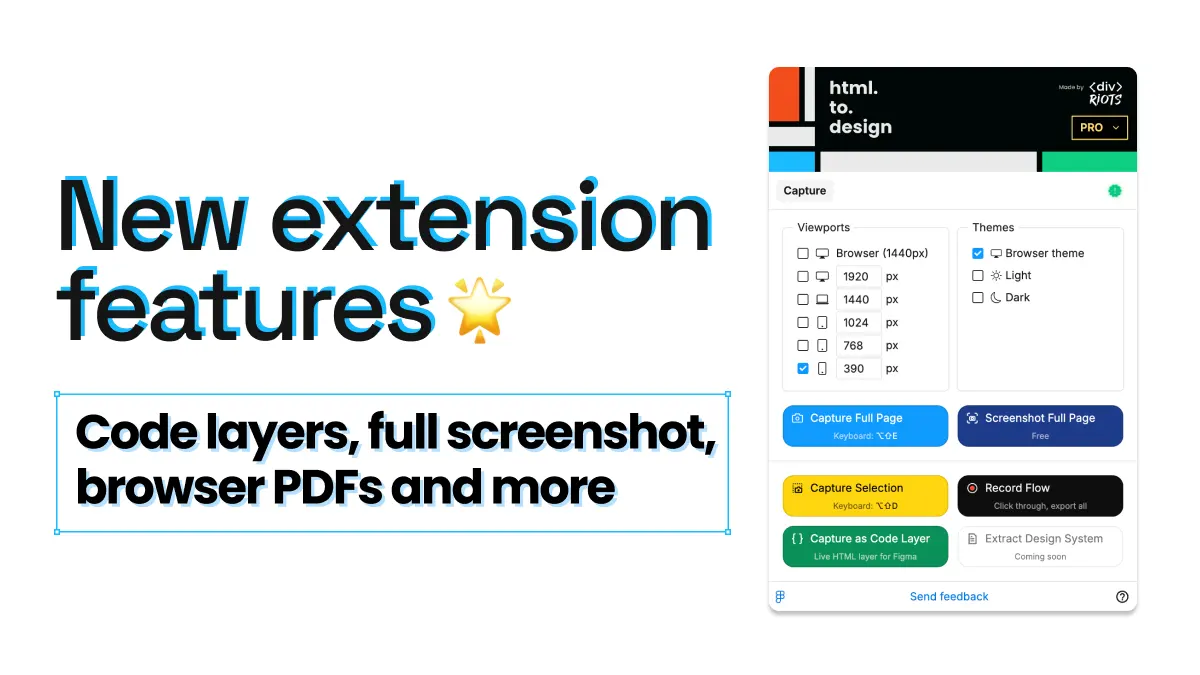
New in the html.to.design extension: Code Layer capture, free full-page screenshots, PDF to Figma, and more
You open a landing page in Chrome, and you need a few things before your next meeting: a clean full-height screenshot for the deck, the working page itself in Figma so the team sees the real animations, and the PDF brochure linked in the footer as editable Figma layers. Until now, that meant several different tools. With this update, the html.to.design browser extension handles all of it.
This release adds five things: page capture as a live Code Layer, free full-page screenshots in any width and theme, PDF to editable Figma conversion straight from Chrome, Gmail emails as editable Figma layers, and video imports that show the video’s first frame instead of an empty box. Here’s what changed and how to use it.
Capture any page as a live Code Layer
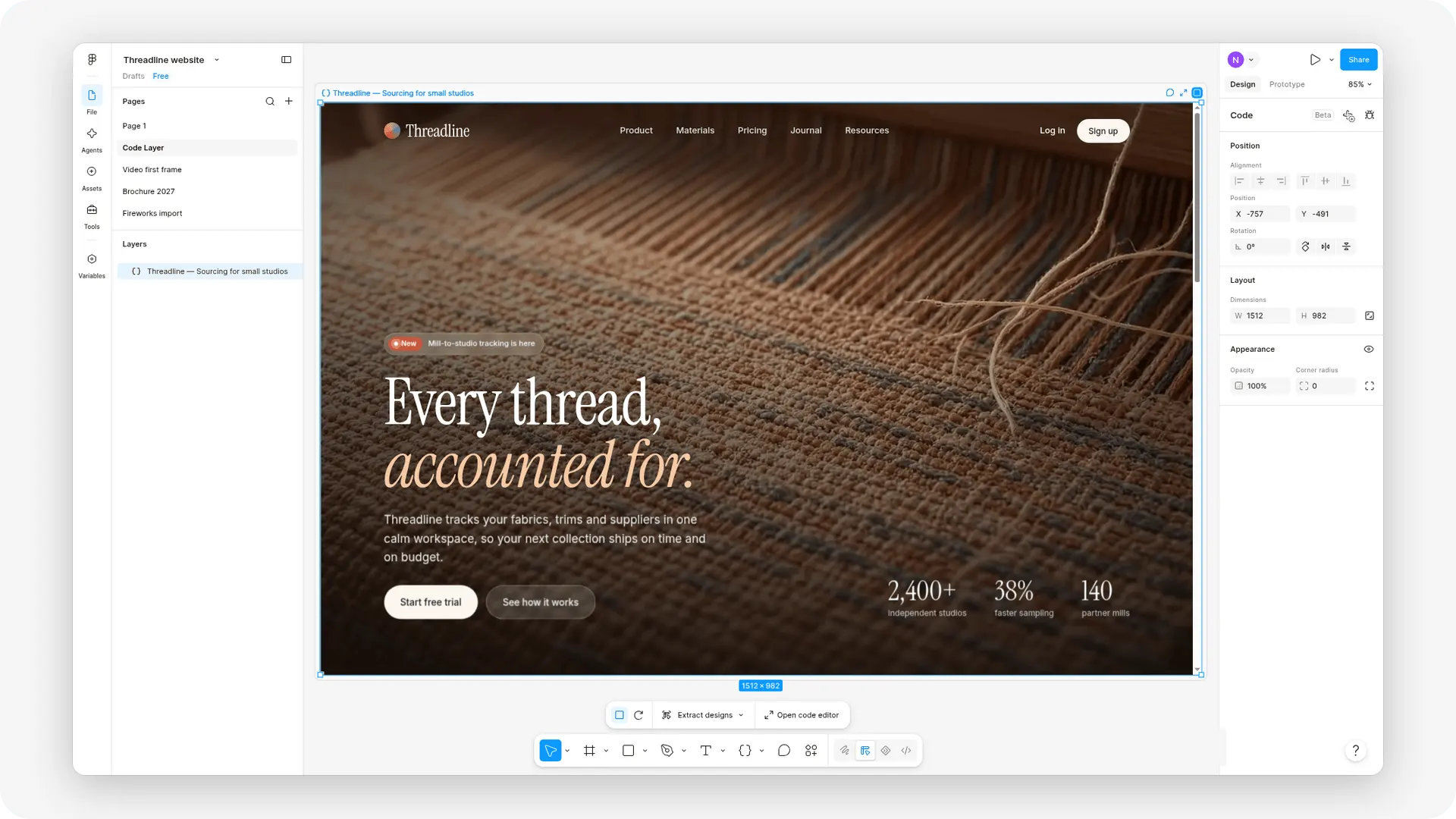
The real, working page inside Figma. Code Layers are a Figma layer type that holds real code instead of frames and shapes (see Figma’s guide to Code Layers). Click “Capture as Code Layer” and the extension copies the page to your clipboard as a web archive. Paste it into a Figma Design file and it becomes a live Code Layer: the page running on your canvas, not a picture of it.
One click, done. The extension captures and copies in a single step: no options to pick in between. The popup just confirms the layer is on your clipboard.
The whole page, really. Before capturing, the extension scrolls the page so lazy-loaded images and sections show up. Web fonts, CSS variables, breakpoints, and web component styles all come along, and CSS animations keep running.
Videos keep playing. If the page played a video of 1 MB or less, it plays in Figma too.
A clean result. Nothing the extension shows while capturing, like toasts or overlays, ends up in your layer.
How to capture a page as a Code Layer
- Open the page in Chrome.
- Click the html.to.design icon in your browser toolbar.
- Click “Capture as Code Layer”.
- Paste into your Figma Design file.
💡 Code Layer or editable layers? Inside a Code Layer, the page lives as code rather than as individual design layers you select and restyle on the canvas. Capture as a Code Layer when you want the page to behave like the live site: animations, videos, and responsive breakpoints included. When you want to change colors, rewrite copy, or pull components apart, use the regular capture to import the website into Figma as editable layers.
Free full-page screenshots
Capture any page as one full-height PNG. The extension now takes full-page screenshots of the page you’re on, from the top of the page to the very bottom, in a single image. No stitching, no scrolling captures.
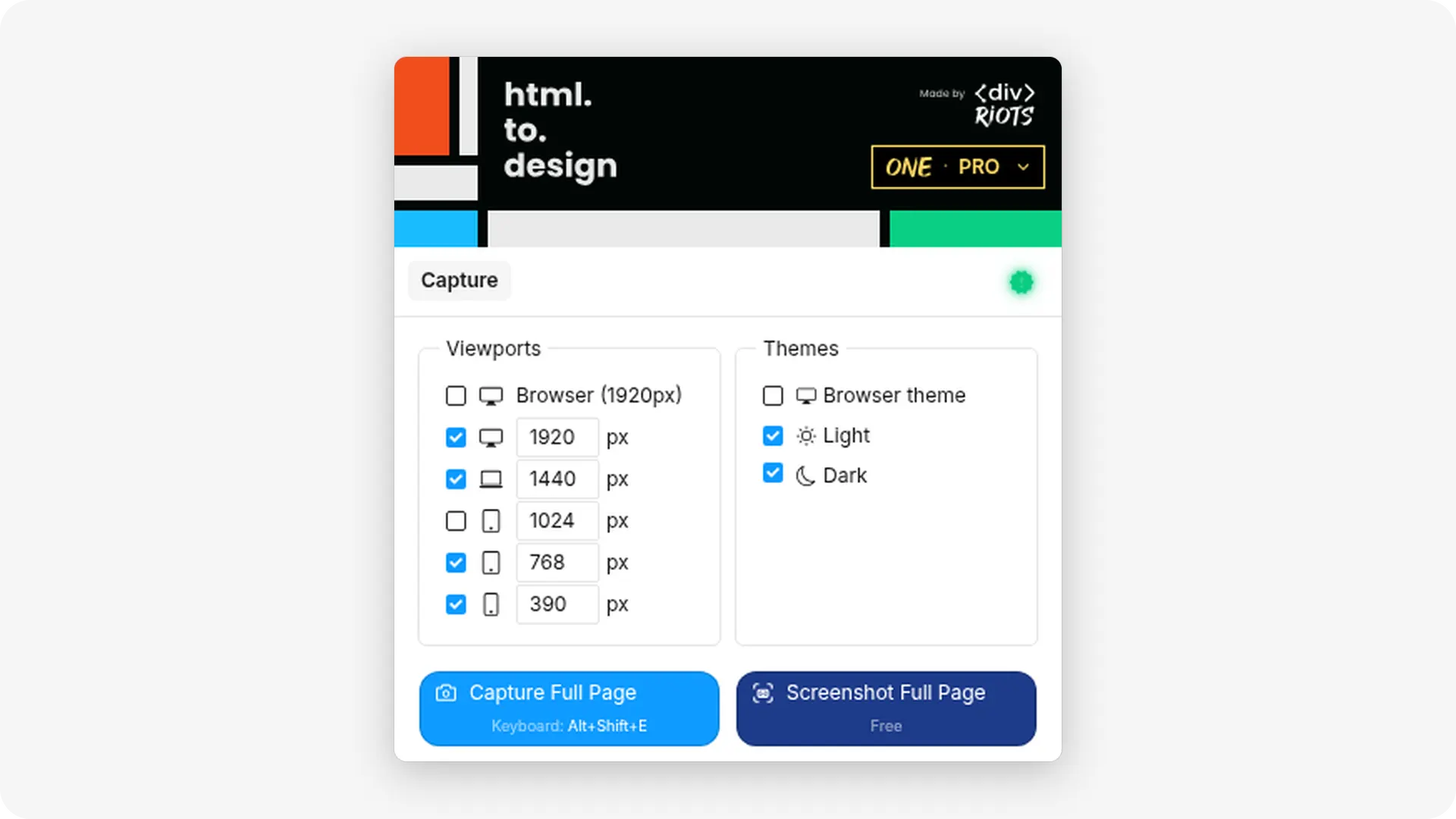
Pick every width and theme you need. Select the widths and themes (light, dark, or both) you want, and the extension produces one screenshot per combination. If you’re documenting a responsive site, you get desktop, tablet, and mobile views in one pass instead of resizing the window and capturing each one by hand.
Copy or download. Copy a screenshot straight to your clipboard to paste it into Figma, Slack, or a doc. Or download it as a PNG. When you capture several screens at once, they download together as a single .zip file.
Free, with no login and no credits. Screenshots don’t require an account and don’t use any credits. Install the extension and start capturing.
How to take a full-page screenshot
- Open the page you want to capture in Chrome.
- Click the html.to.design icon in your browser toolbar.
- Select the widths and themes you want, then click “Screenshot Full Page”.
- Copy the result to your clipboard, or download it (a .zip if you selected several screens).
💡 When to use a screenshot. A screenshot is a flat image: right for moodboards, client reviews, bug reports, before/after comparisons, and archiving how a page looked on a given day. For a working page, capture it as a Code Layer. For a design you edit, import it as editable layers. Same extension, three outputs.
Chrome extension: PDF to editable Figma
Figma doesn’t import PDFs as design layers. The list of file types you can import into Figma’s file browser covers formats such as .fig, .sketch, PNG, JPG, and PowerPoint files, but not PDF. That’s the gap our pdf.to.design plugin has covered inside Figma, and now the html.to.design browser extension covers it too.
Open a PDF in Chrome, get editable Figma layers. When you open a PDF in Chrome, the extension converts it into fully editable Figma layers, ready to paste onto your canvas. Text stays text, shapes stay shapes, and you can restyle, move, or rebuild anything you capture.
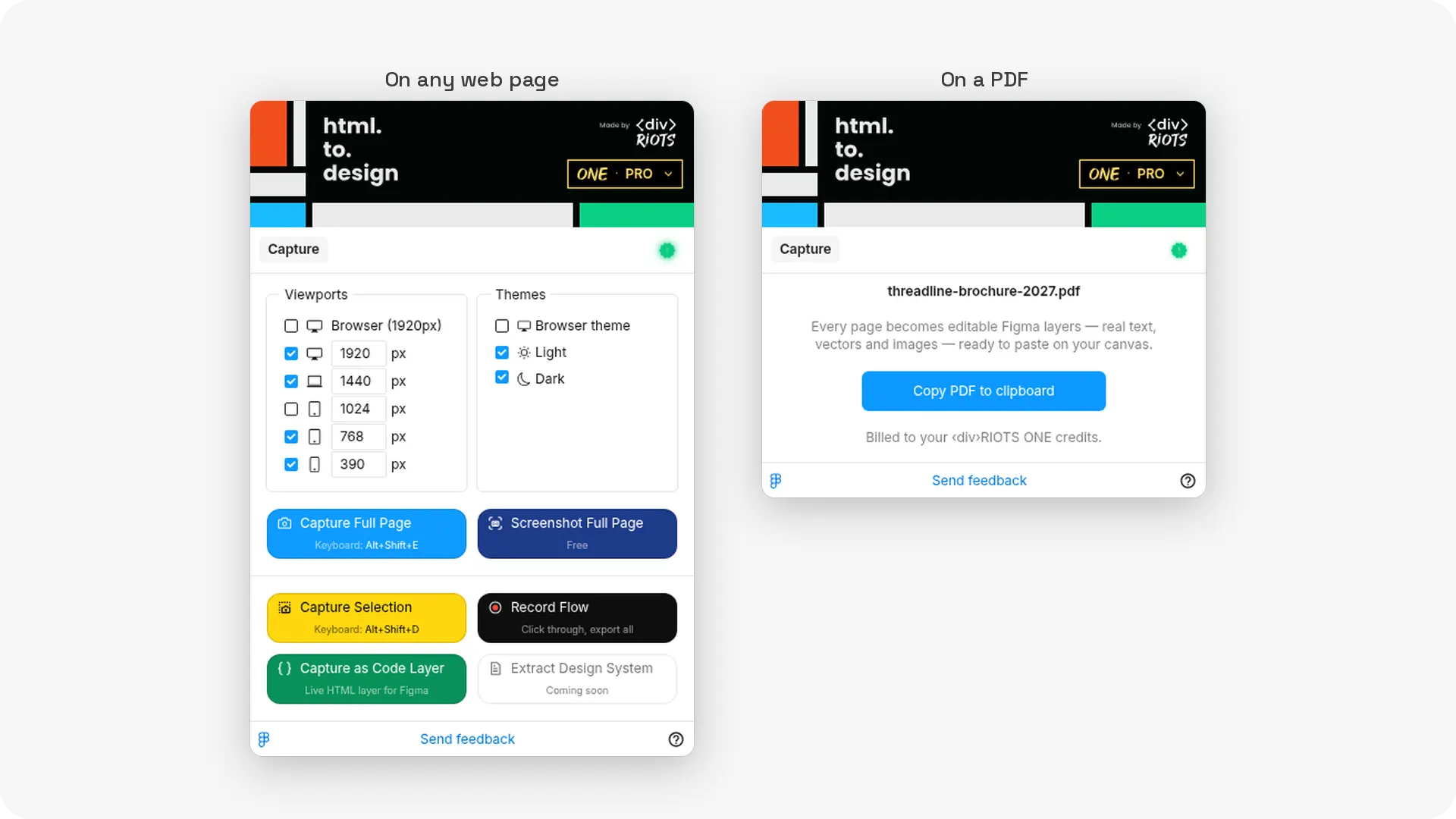
Works with embedded PDFs too. The PDF doesn’t need to be open in its own tab. If a page shows a PDF in a viewer that covers at least half the window (a product spec sheet, a menu, a report viewer), the extension converts that one as well. You skip the “find the download link, save the file, re-upload it somewhere else” step completely.
Available with your ‹div›RIOTS ONE account. PDF conversion in the extension is part of ‹div›RIOTS ONE. Log in with your ONE account in the extension to use it: each conversion uses your ONE credits.
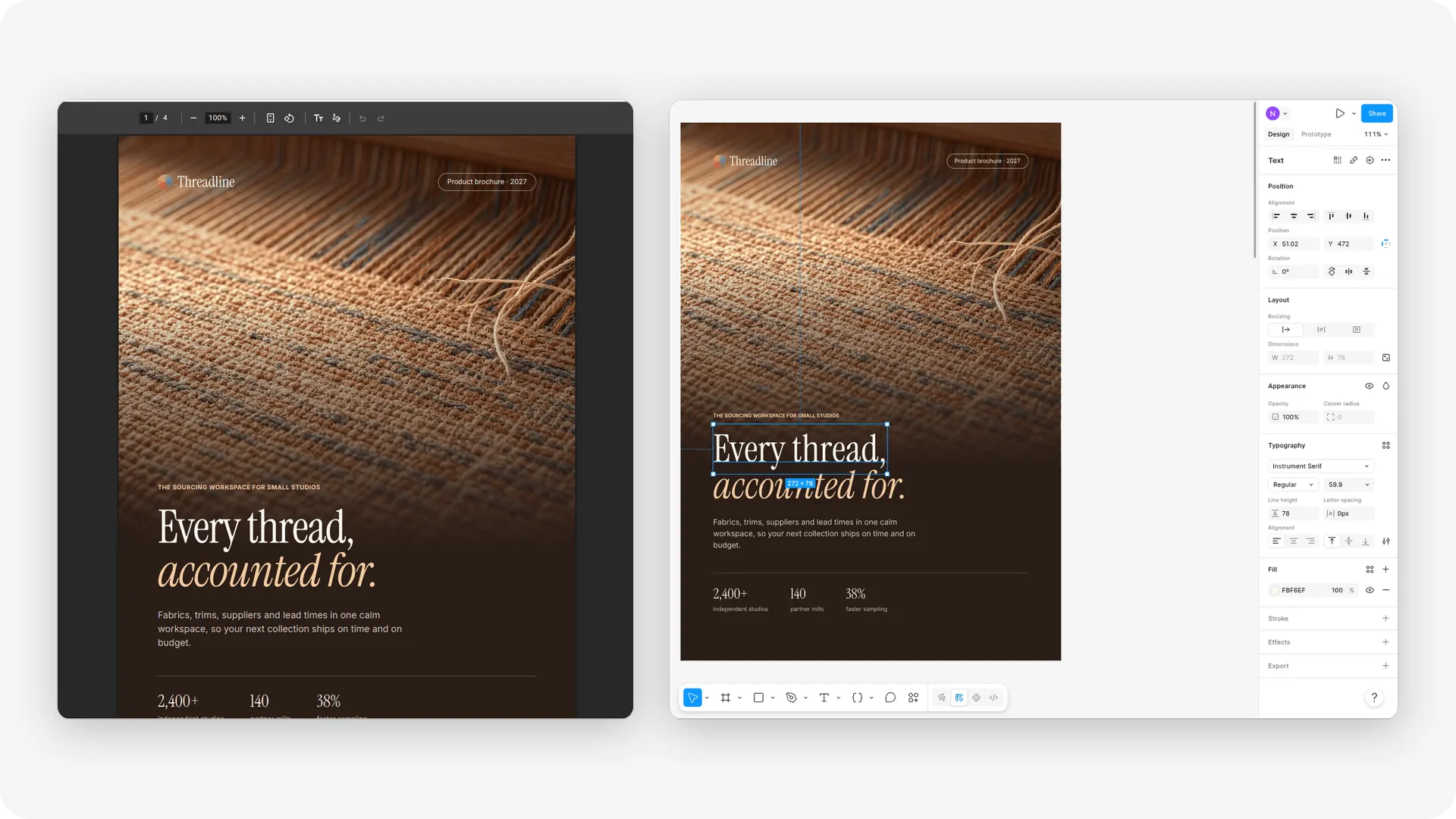
How to convert a PDF in Chrome to Figma
- Open the PDF in Chrome, either directly or on the page where it’s embedded.
- Click the html.to.design icon in your browser toolbar and log in with your ‹div›RIOTS ONE account.
- Click “Copy PDF to clipboard”.
- Paste the result into your Figma file.
💡 Extension or plugin? Use the html.to.design browser extension when the PDF lives on the web: you’re already looking at it, and you go straight from browser to canvas. Use the pdf.to.design Figma plugin when the PDF is a file on your computer. For more on what the plugin converts, check out the pdf.to.design docs.
Import emails from Gmail to Figma
Any open email, as editable Figma layers. Open an email in Gmail, and the extension captures it and imports it into Figma as fully editable layers. The layout, text, and images land on your canvas as layers you select, restyle, and rearrange, not as a flat screenshot of your inbox.
Why this is useful. Email design has an awkward round trip: the final version of a newsletter or transactional email often lives only in someone’s inbox, not in a design file. With Gmail to Figma, the email you received is your starting point. Capture last month’s newsletter and update it for this month, pull a competitor’s promo email into a research board, or rebuild a legacy onboarding email that nobody has the source file for.
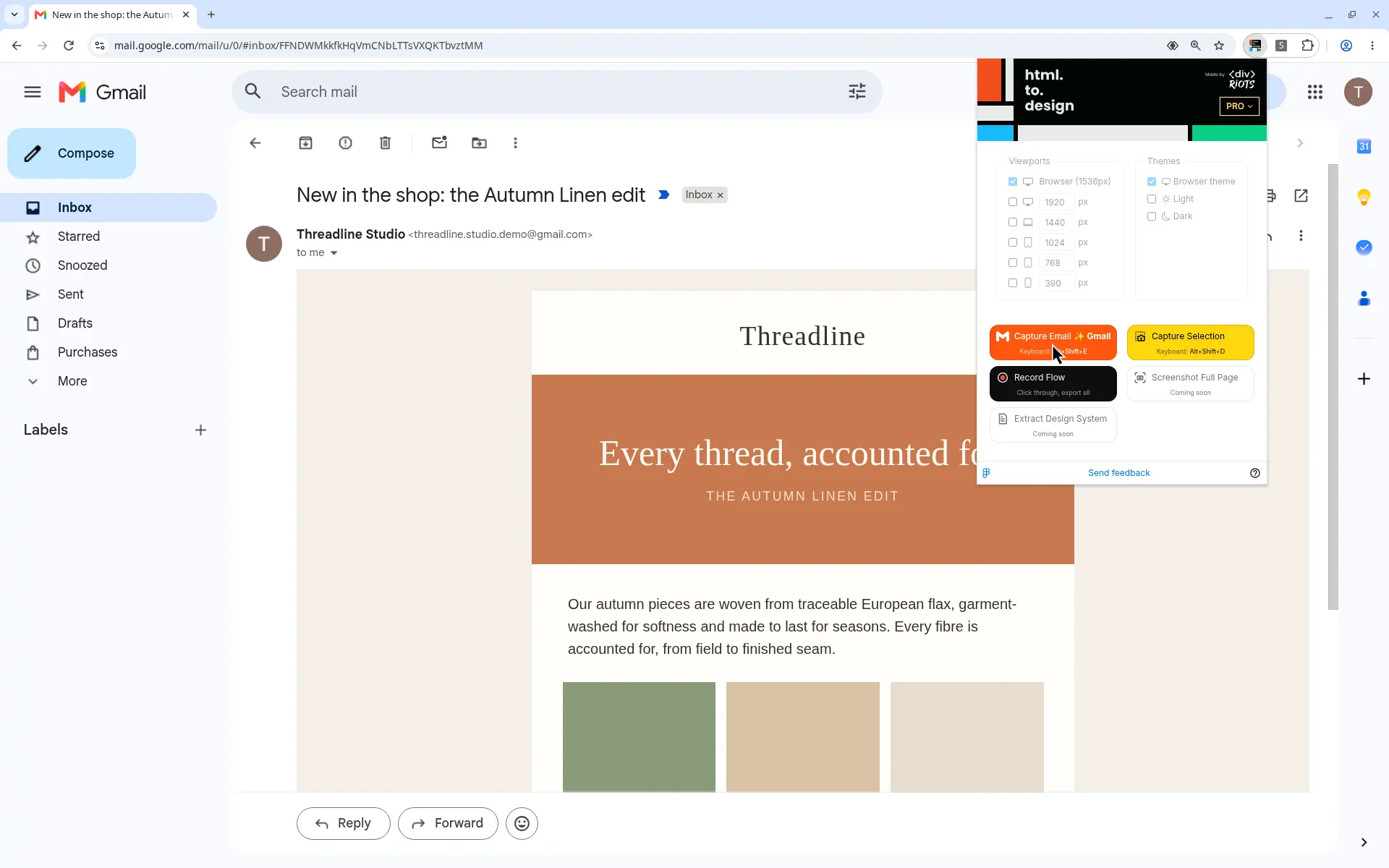
How to import a Gmail email into Figma
- Open the email in Gmail in Chrome.
- Click the html.to.design icon in your browser toolbar.
- Click “Capture Email”.
- Copy the result to your clipboard, then paste it into your Figma file as editable layers.
💡 Have the email as a file? html.to.design also imports .eml, .emlx, and .msg files: see how to import an email into Figma.
Videos import with their first frame
No more empty video placeholders. On the web, a <video> element can set a poster image, shown while no video data is available. Many sites don’t set one. Previously, those videos came into Figma as empty placeholders: a blank rectangle where the hero video should be.
Now, when a video has no poster image, html.to.design fills it with the video’s first frame. Your imported hero sections, product demos, and background videos look like the live page instead of having holes in them.
Why it matters. An empty box tells you nothing about what was there. With the first frame filled in, you can review the layout with real visual content, judge contrast between the video and the text on top of it, and present the import to stakeholders without explaining what the gray rectangle is supposed to be.
💡 Need the video to actually play? Capture the page as a Code Layer instead: videos of 1 MB or less keep playing in Figma.
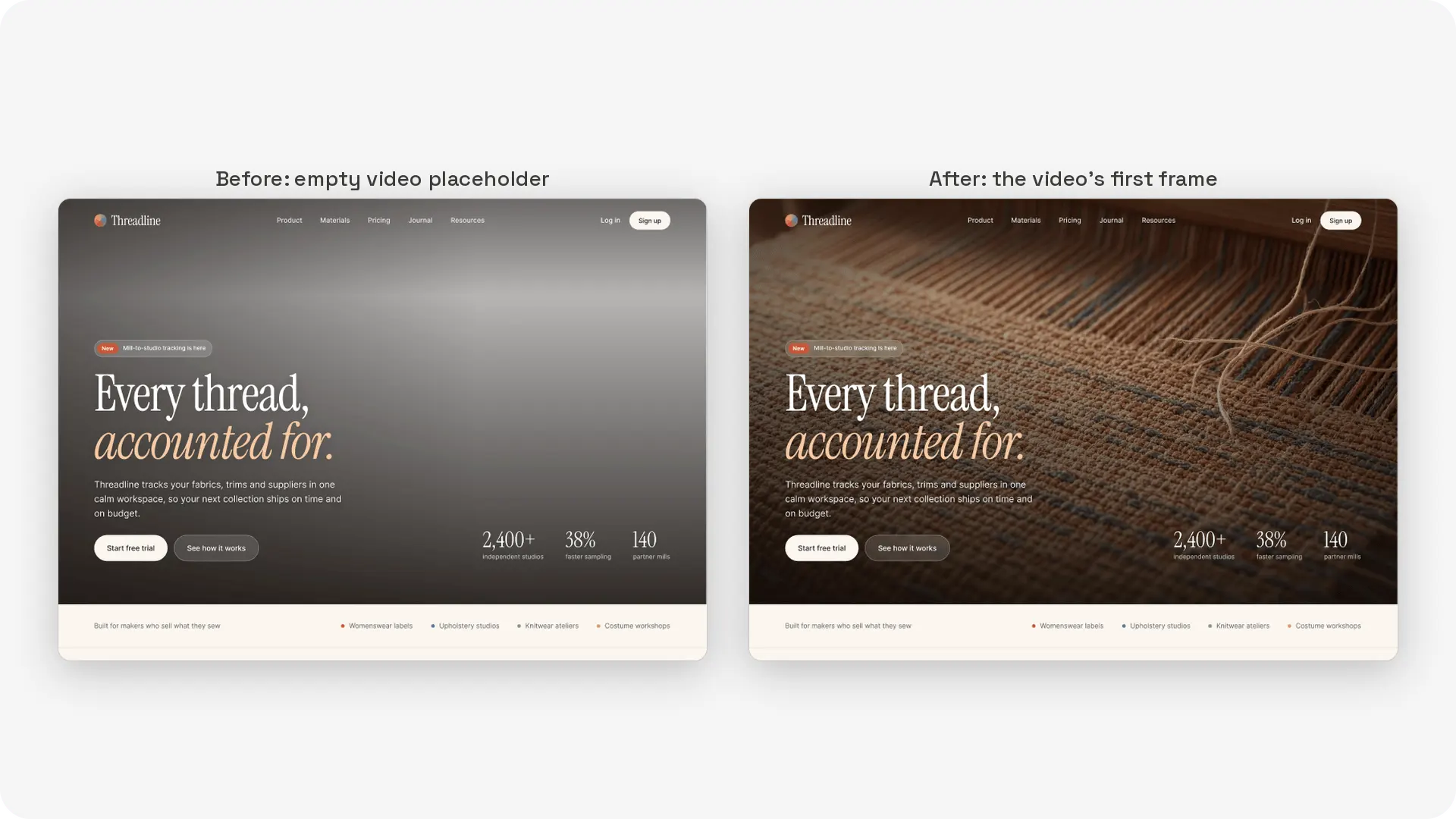
What this update changes for you
- One tool instead of five. Code Layers, screenshots, editable website imports, PDF conversion, and Gmail email capture now all start from the same extension icon.
- The live page on your canvas. A Code Layer keeps web fonts, CSS variables, breakpoints, animations, and short videos working inside Figma.
- Full-page captures in one pass. Every width and theme you select comes out of a single screenshot capture, bundled as a .zip when there are several.
- No account needed for Code Layers or screenshots. Share the extension with teammates, clients, or developers: they don’t need to sign up or spend credits.
- PDF to Figma without the file juggling. Convert a PDF where you find it, including embedded PDFs, and paste it straight into your design file.
- Emails straight from your inbox. Capture an open Gmail email as editable layers, even when nobody has its source file.
- More complete imports. Videos without a poster image now show real content instead of empty placeholders.
Try it
Code Layer capture, full-page screenshots, PDF to editable Figma, Gmail email capture, and video first frames are all live now. Update or install the html.to.design browser extension to get started, and let us know what you think.
Working with other file types? The full suite of ‹div›RIOTS products brings PDFs, PSDs, Illustrator files, Office documents, and more into Figma as editable layers.