How to import an email into Figma as editable designs
If you’re designing emails in Figma, you’ll love this new update to html.to.design. We’re excited to announce a new feature: email imports! You can now convert any email to Figma as fully editable designs.
Whether you’re auditing competitor campaigns, creating a design system for your emails, or simply want to iterate on existing templates without wrestling with code, the ability to import emails to Figma can bring a major upgrade to your design process.
Quick guide - Convert an email to Figma designs
- Download or save your email as a .eml, .emlx or .msg file
- Run html.to.design in Figma
- Drop your email file in the File tab
- Edit your email design in Figma!
Step-by-step: How to import an email into Figma
From your email inbox to Figma in just a few clicks 🚀 Here’s how the new email import feature works:
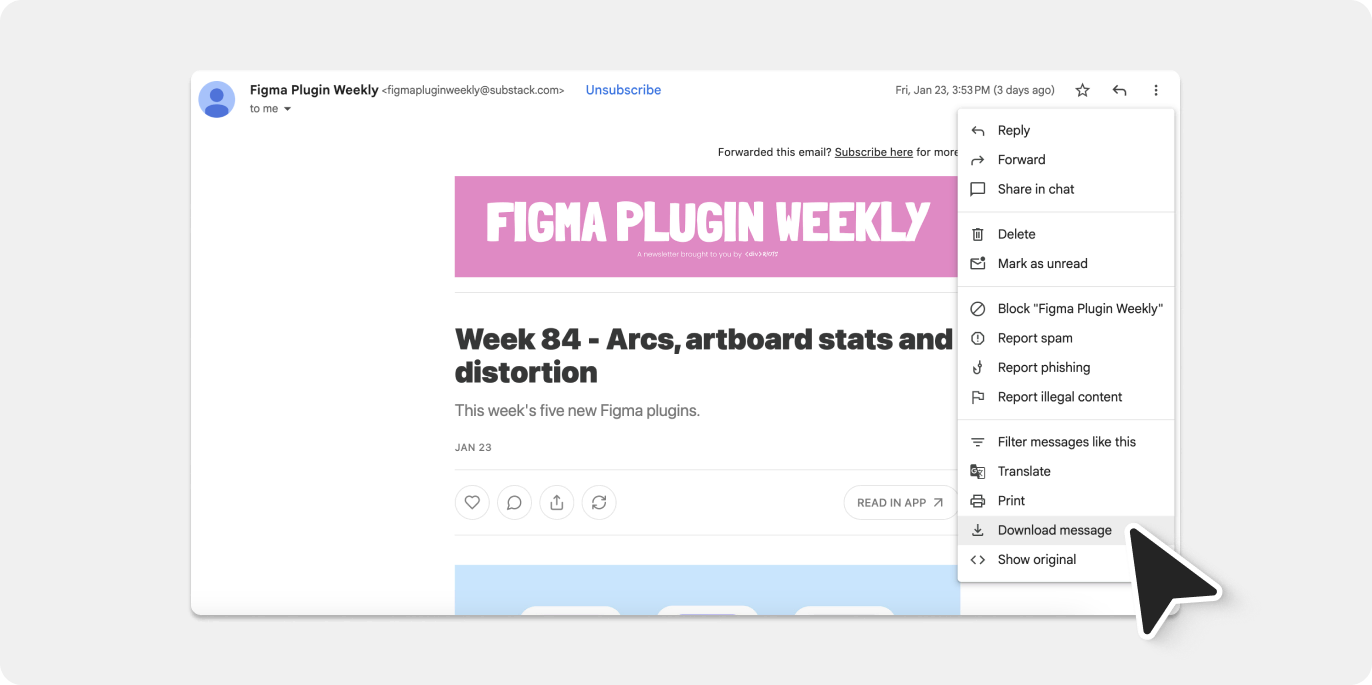
1. Save your email
First, save or download the email you want to import as a file. When you import an email to Figma using html.to.design, the plugin supports three common email formats: .eml, .emlx, and .msg. Most email clients allow you to save or export emails in one of these formats.
2. Open in Figma
Run the html.to.design plugin in the Figma file where you’ll be working on your email design.
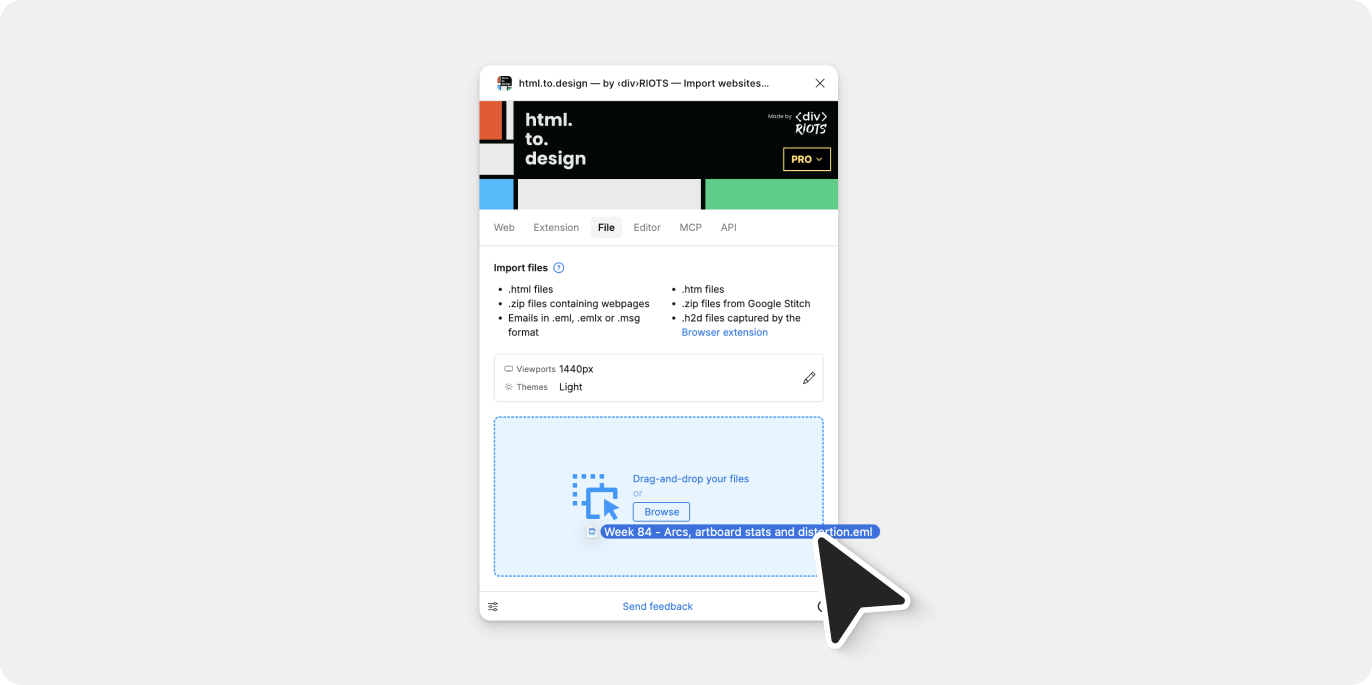
3. Drop your email in the File tab
In the plugin, click on the File tab, then drag and drop your email file (.eml, .emlx, or .msg) into the designated area, or click to browse and select your file. The email to Figma conversion process begins instantly.
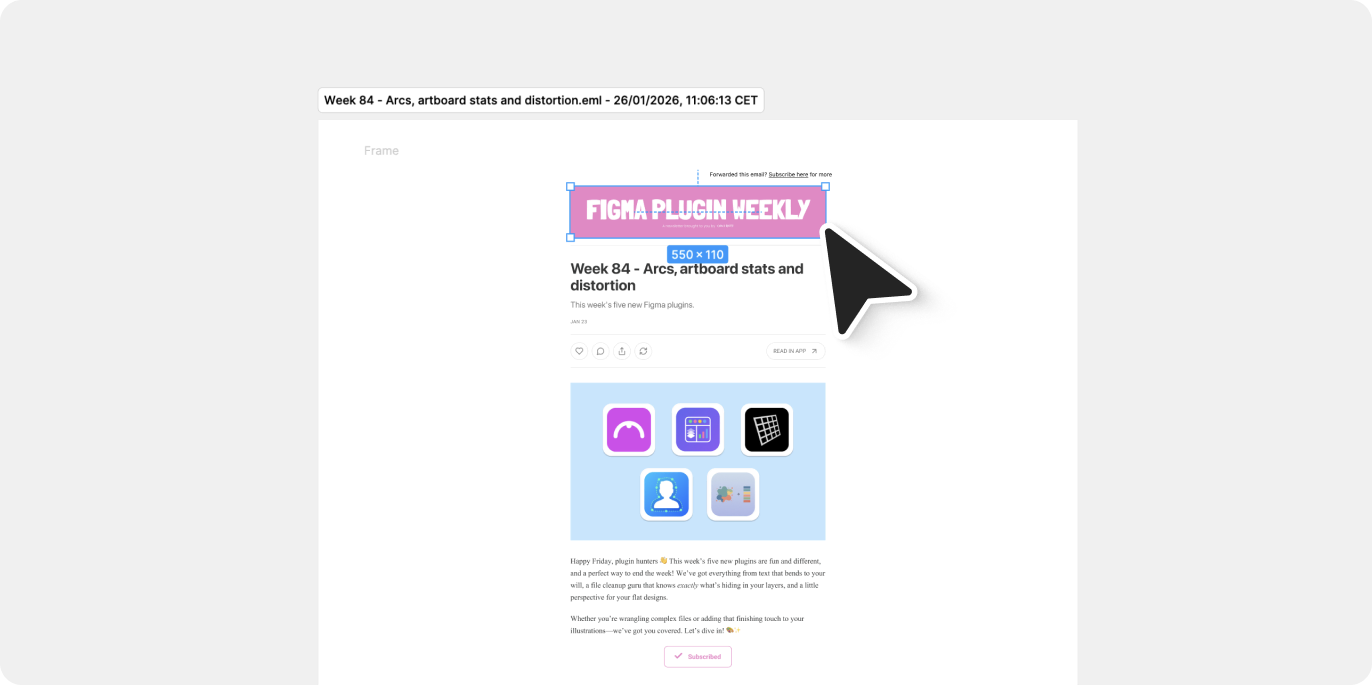
4. Watch the magic happen ✨
html.to.design automatically processes your email and converts it into a fully editable Figma design, preserving the layout, typography, images, and styling. Your email is now ready to edit in Figma.
Why import emails into Figma?
Emails can make up a big part of a designer’s workflow. Here are just a few specific use cases where the email import feature can help:
🔎 Competitor research made easy
Benchmarking competitor email campaigns used to mean taking screenshots or manually recreating designs. Now you can import these emails into Figma directly from any marketing campaign to study layouts, and understand design patterns. This email to Figma workflow makes competitive analysis faster and more accurate.
⚡️ Faster template audits and updates
If you need to update an existing email template, you no longer need to dig through HTML code or request exports from developers. Import the email into Figma using html.to.design, make your changes visually, and hand off clean designs to your development team. Converting email to Figma eliminates the back-and-forth.
🛠️ Build and document an email design system
If you’re working on making your company’s emails part of your design system, you can now bring all your existing email designs into one place to identify patterns, extract reusable components, and build a centralized design system that keeps your email marketing consistent.
👩💻 Collaborate without code
Not everyone on your team speaks HTML. Email to Figma conversion democratizes the design process by letting marketers, copywriters, and stakeholders view and comment on email designs within Figma’s collaborative environment, without needing technical knowledge.
Start converting email to Figma
The new email to Figma feature in html.to.design helps bridge the gap between your inbox and Figma design workspace.
The next time you receive an email that catches your eye, or need to iterate on your team’s latest campaign, remember that you’re just one file drop away from converting that email to Figma as a fully editable design.
Give it a try! Import your first email into Figma with html.to.design.