How to import your webapp into Figma Make in seconds! New extension update.
We recently launched a new version of our browser extension that allows you to copy-paste directly from Chrome to Figma 🚀 But there’s more!
Alongside the new clipboard import, you can now also download any captured webpage or app as a Figma .make file, to then drop it right into Figma.
Figma Make does not accept live URLs or standard design file imports as a starting point for AI-powered prototyping, which means manually rebuilding your entire UI from scratch before you can iterate on a single feature.
The new html.to.design browser extension solves this, capturing any live webpage or web app and exporting it as a .make file, ready to drop straight into Figma. This guide covers the full process: from installing the extension to opening your first Figma Make project built from a real product.
Quick Guide: From web app to Figma Make in 4 steps
For those looking for the fast track:
- Open the html.to.design browser extension and capture your webpage or web app
- Select “Download Figma Make project”
- Open Figma and drop the file anywhere in the file viewer
- Start building in Figma Make with your real product
What is a Figma Make file?
A .make file is Figma’s project format for Figma Make, the AI-assisted prototyping environment built into Figma. It can be dropped right into Figma’s file viewer to then open it directly in the Figma Make canvas, where you can use AI prompts to iterate on the design, add interactions, and prototype new features — all starting from an existing structure rather than a blank page.
When you export a webpage as a .make file using html.to.design, the output is a structured representation of that page’s layout, components, and visual hierarchy — ready to be opened and edited in Figma Make.
How to convert your website into a Figma Make project
Step 1: Install or update the html.to.design extension
Go to the Chrome Web Store and install the html.to.design extension. If you already have it installed, open the Extensions menu in Chrome and confirm you are on the latest version — the .make file export is only available in the updated release.
Step 2: Open the extension on your target page
Navigate to the webpage or web app you want to bring into Figma Make. Click the html.to.design extension icon in your browser toolbar to open the capture panel. The extension scans the current page and prepares a structured snapshot of its layout, text, images, and component hierarchy.
You can capture the full page or a specific viewport. For most prototyping workflows, capturing the visible viewport of the page you want to iterate on gives the most relevant starting point.
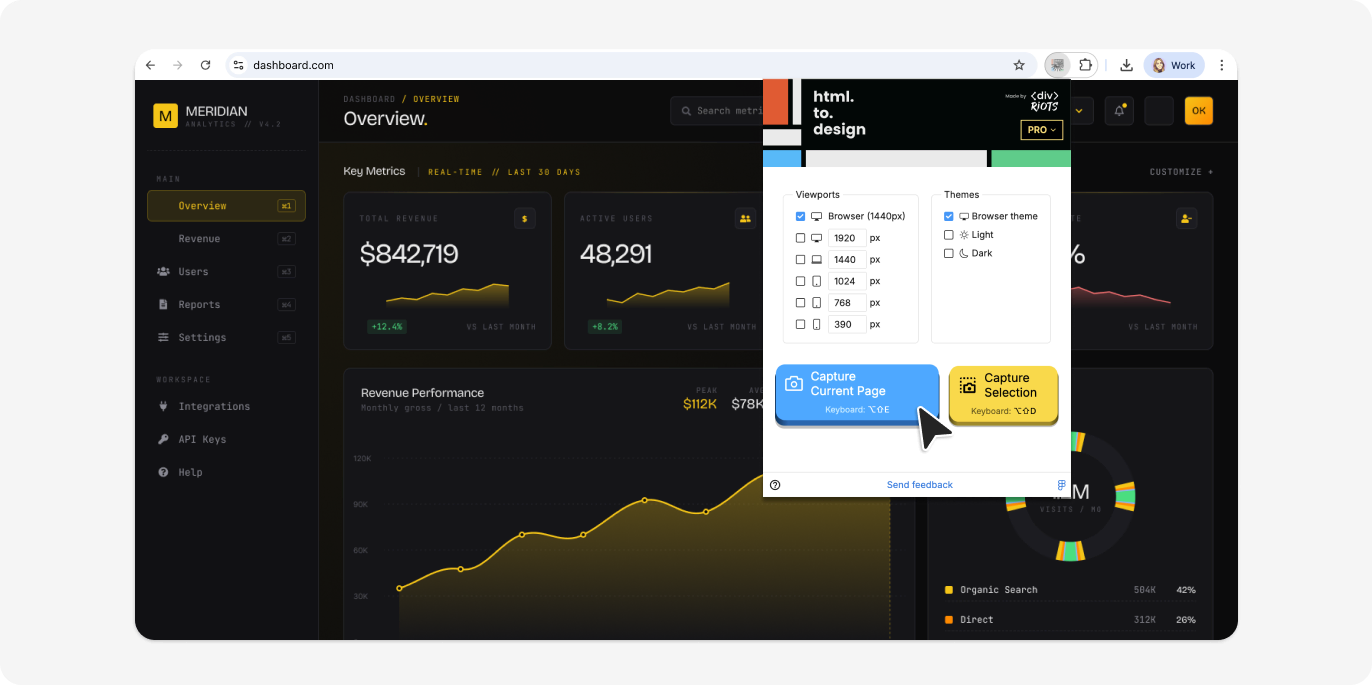
Step 3: Select “Download as .make File”
Once the extension has captured the page, you’ll instantly see a few options to import your page into Figma. Select ‘Download Figma Make project’ and a Figma .make file downloads to your local machine in seconds.
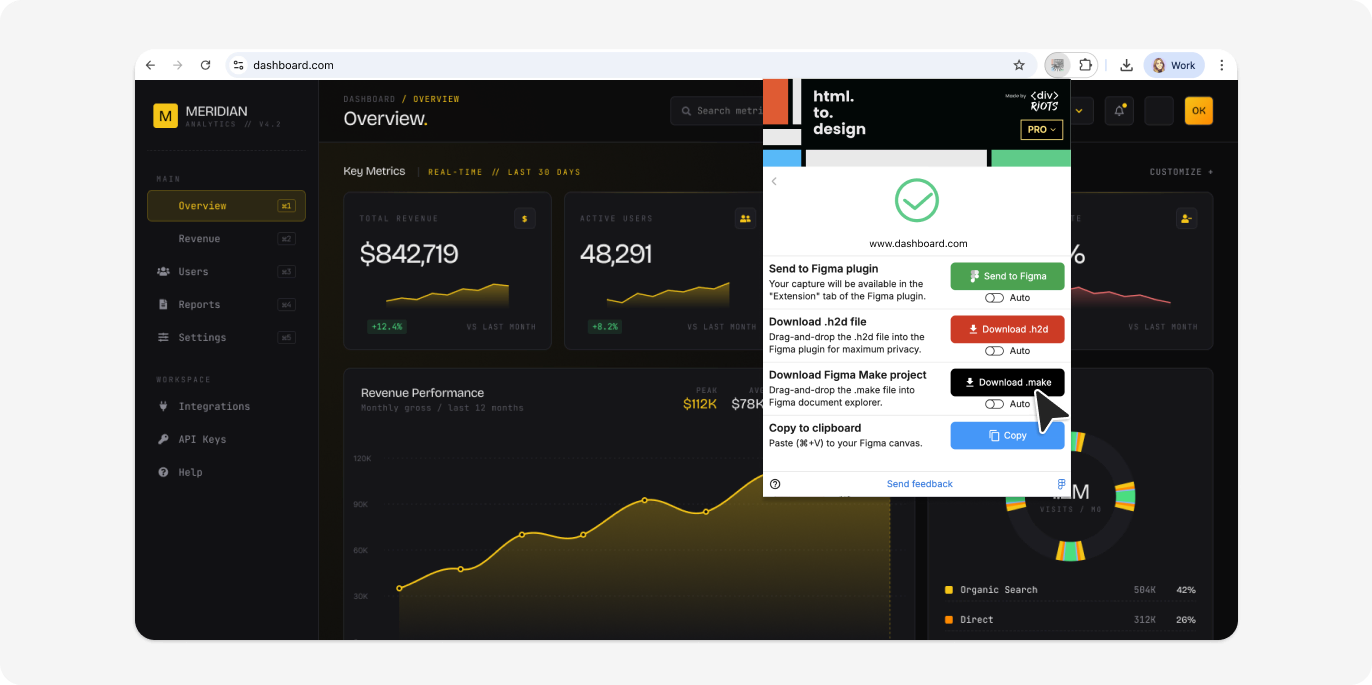
Step 4: Drop the file into Figma
Open Figma and navigate to the file viewer — the main dashboard where your projects are listed. Drag and drop the .make file from your local machine directly into the file viewer.
Figma recognizes the .make format and opens the file in the Figma Make canvas automatically. You do not need a plugin running inside Figma for this step — the import is handled by Figma’s native file support.
ℹ️ Bonus: check out our guide on How to open a Figma Make project.
Step 5: Start building in Figma Make
With the file open in Figma Make, your real product UI is now the starting point. The canvas shows the captured layout as an editable structure. From here, use Figma Make’s AI tools to prompt changes, add new components, build interactions, or explore feature concepts — all anchored to the actual product rather than a rough approximation.
Why convert a website to a Figma Make project?
Prototype new features for existing products
When you’re iterating on a live product, starting from a blank canvas means rebuilding what already exists before you can explore what’s new. With a Figma .make file export of your existing webpage, you start from where the product actually is — capturing the real UI as your baseline and jumping straight into prototyping new features.
Better developer handoff
Prototypes grounded in real UI are easier for developers to work with. Instead of handing off designs that approximate the product, you can build Figma Make prototypes that reflect the actual component structure and layout of the live page — reducing ambiguity and back-and-forth.
Save time and credits
Creating a .make file of a webpage with html.to.design takes a single import, cutting down on both time and credits for bootstrapping your existing app.
Give it a try
Figma Make is built for fast, AI-assisted prototyping — but it’s most effective when you start from something real. You no longer need to rebuild an existing product UI from scratch to use it as a Figma Make baseline — the updated html.to.design extension exports any live webpage directly as a .make file.
Whether you’re building new features, exploring an idea, or preparing a handoff… Your next prototype starts from the real thing.
Download the latest version to see how quickly you can go from webpage to Figma Make.