From Variant to Figma. Import AI-generated designs in seconds
Variant generates endless website and app design variations just by scrolling. You describe your concept, and the tool renders multiple design options as live HTML and CSS in your browser. But those designs stay trapped in the web interface—until now.
html.to.design captures any rendered HTML page and converts it into fully editable Figma layers. This means you can take Variant’s generated designs and import them directly into Figma, where you can refine typography, adjust spacing, swap components, and integrate them into your design system.
This guide shows you exactly how to import Variant designs into Figma using html.to.design’s browser extension and plugin. You’ll learn the complete workflow, what gets preserved during conversion, and how to use this method to accelerate your design process.
From Variant to Figma - Quick Guide
- Generate designs in Variant by entering your app or website idea
- Install and launch the html.to.design browser extension
- While viewing your chosen Variant design, capture the page
- Import the captured design and convert it to editable Figma layers
How to import Variant designs into Figma
Step 1: Generate your designs in Variant
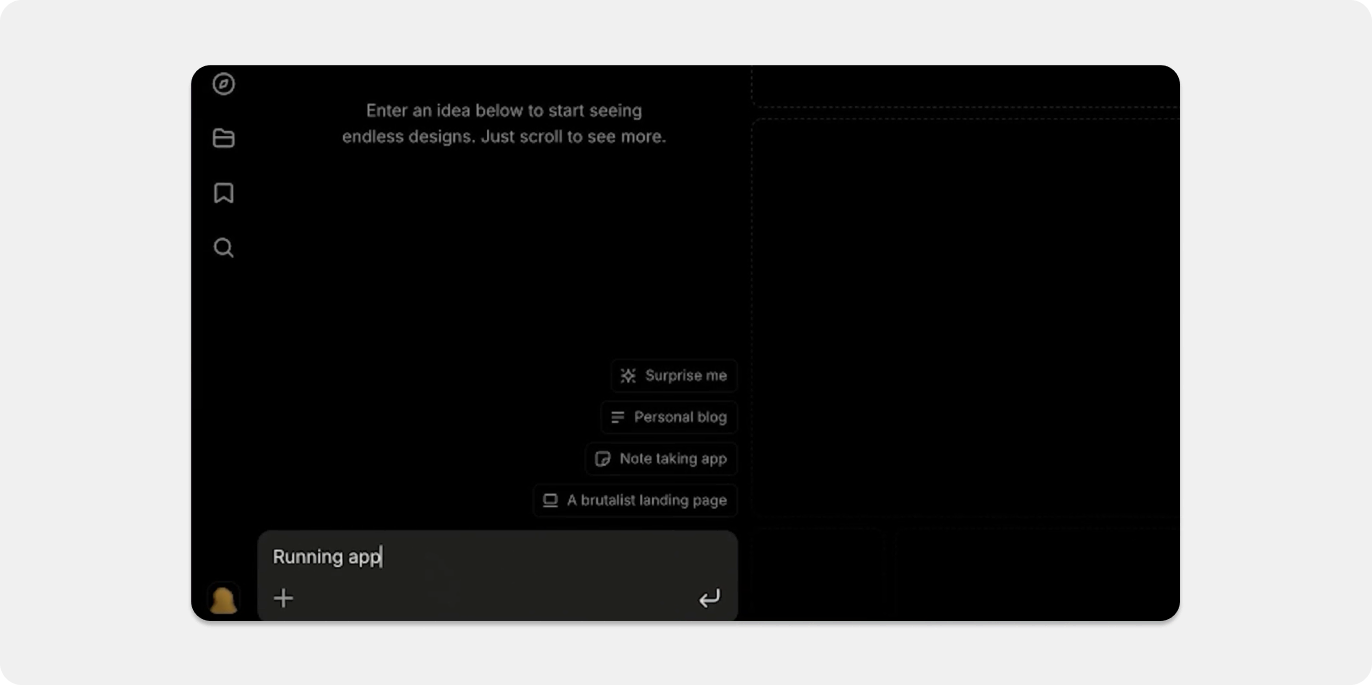
Open Variant and enter a description of the website or app you want to design. The more specific you are about your concept, the better the results. For example, instead of “a landing page,” try “a SaaS landing page for project management software with pricing tiers and customer testimonials.”
Variant generates multiple design variations as you scroll. Each design renders as actual HTML and CSS in your browser, which means every element—text, images, buttons, layouts—exists as structured code that can be captured and converted.
Browse through the generated options and identify the design that best matches your vision. You can generate as many variations as you need before selecting one to import into Figma.
Step 2: Install the html.to.design browser extension
If you haven’t already, install the html.to.design browser extension.
The extension works on any HTML page, including Variant’s generated designs, product pages, competitor websites, or design inspiration you find online. Once installed, it stays ready in your browser for whenever you need to capture a design.
3. Capture your chosen design
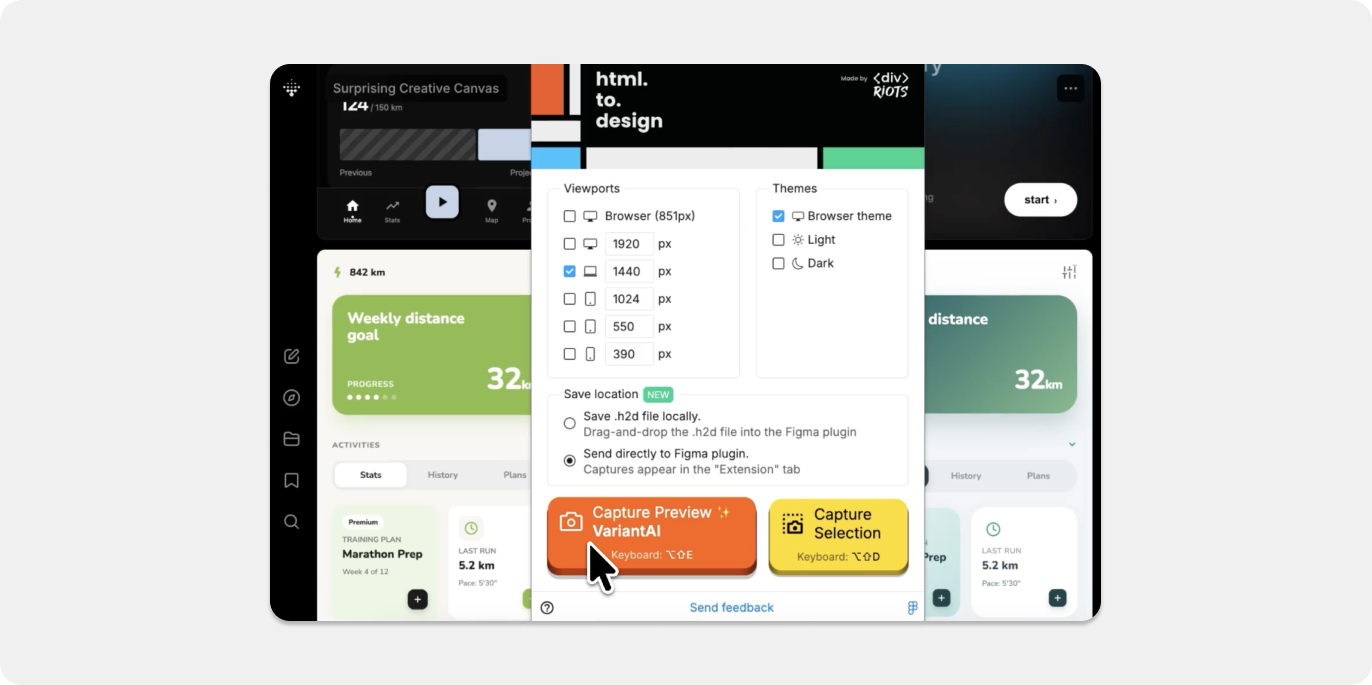
With your selected Variant design visible in the browser, click the html.to.design extension icon in your toolbar. The extension activates and displays capture options.
You can capture the entire visible page, or use the selection tool to capture specific sections. This flexibility lets you import only the components you need rather than the entire layout.
Click “Capture” when ready. The extension processes the HTML and CSS, preserving the visual structure, typography, colors, spacing, and layout. This captured data gets prepared for import into Figma.
Step 4: Open Figma and run the plugin
Next, open Figma and create a new file or open an existing project where you want to place the imported design. Navigate to the plugins menu and search for html.to.design.
Run the plugin. It connects to the browser extension and displays your recently captured designs. You’ll see a preview of the Variant AI page you just captured.
Step 5: Import and convert to Figma Layers
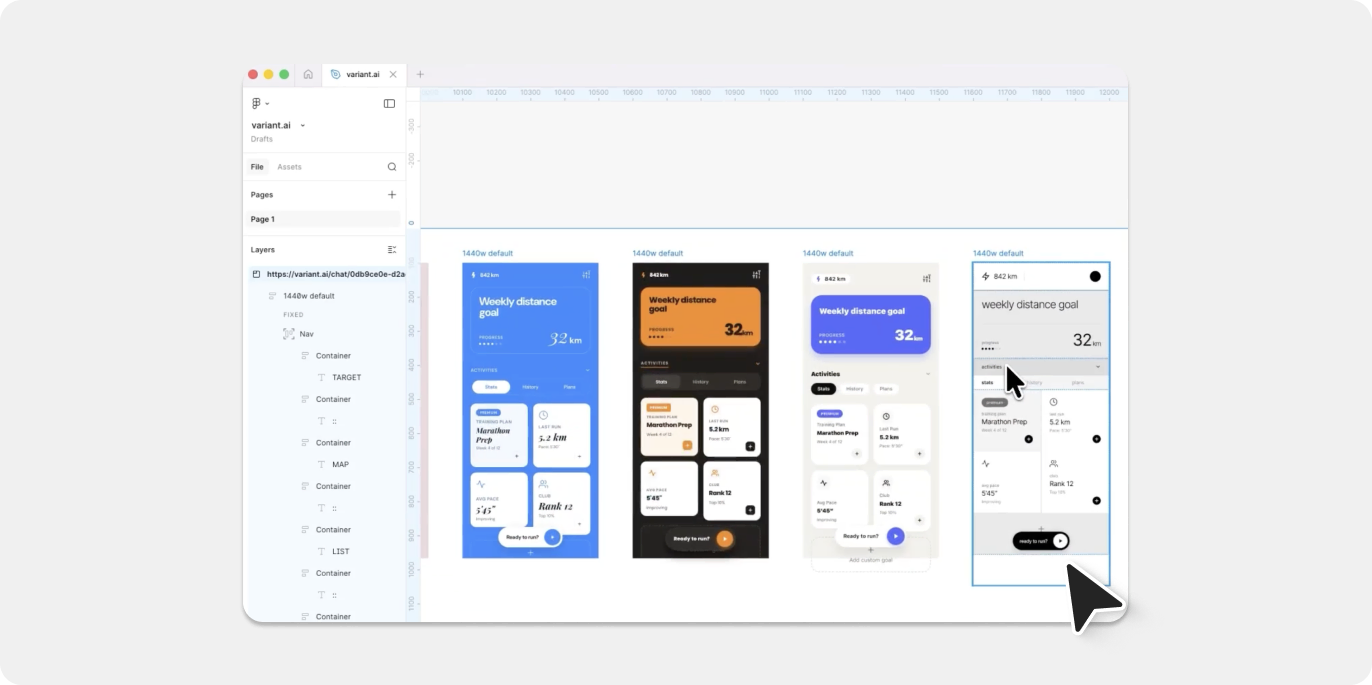
Select the captured design from the plugin interface and click “Import.” The plugin automatically converts the HTML and CSS into native Figma layers, frames, text elements, and components.
Once imported, your Variant designs appear on your canvas as fully editable Figma elements. You can immediately start modifying text, swapping images, adjusting colors, or reorganizing the layout structure.
Why import designs from Variant to Figma?
Bootstrap initial design exploration
Generate multiple design directions in Variant, then import the strongest candidates into Figma for refinement. This workflow cuts down the time spent on initial layout exploration from hours to minutes.
Combine AI generation with manual refinement
Use Variant for rapid concept generation and layout ideas, then apply your design expertise in Figma to adjust details, apply brand guidelines, optimize for specific use cases, and polish the final output.
Enable team collaboration
Figma’s collaboration features let your entire team comment on, iterate, and build from the imported Variant design. Developers can inspect spacing and properties, stakeholders can leave feedback, and other designers can contribute refinements.
Perfect use cases
Landing page prototyping
Generate multiple landing page concepts in Variant then import the top performers into Figma to polish messaging, swap in real brand assets, and align with your design system.
Component inspiration and iteration
Use Variant to generate variations of specific components—pricing tables, feature grids, testimonial sections, hero layouts. Import these into Figma to compare options side-by-side and combine the best elements from multiple variations.
Rapid client presentation concepts
Create multiple design directions quickly for client meetings. Generate concepts in Variant, import into Figma, add the client’s branding, and present polished options—all within a fraction of the time traditional design exploration requires.
Design system expansion
Generate new component patterns or layout templates using Variant, import them into Figma, then refine and systematize them into reusable components that match your design system’s structure and naming conventions.
Start importing from Variant to Figma
Variant’s generative capabilities combined with html.to.design’s conversion technology create a workflow that accelerates design exploration without sacrificing control or quality. You generate concepts with AI, then refine them with professional design tools.
html.to.design captures the rendered code from your Variant design options and converts it into editable Figma layers. The result is a bridge between AI-generated concepts and production-ready design files.
Try the html.to.design browser extension and start importing your Variant designs into Figma. The extension works with any HTML page, so you can also capture designs from competitors, inspiration sites, or any other web-based design tool that renders in the browser.
For more workflows, explore our guides on importing from other AI design tools or learn how to convert any website into Figma designs.