How to import Claude Design prototypes into Figma as editable layers
Claude Design allows you to export prototypes to Canva, PDF, PPTX, and standalone HTML — but not to Figma. And Figma does not support importing HTML, React, or live webpages as native layers (see Figma’s supported formats).
This guide covers two methods to bring a Claude Design prototype into Figma as editable, fully layered design. The fastest method uses the new ‘Copy to Clipboard’ feature in the html.to.design Chrome extension: capture your Claude Design creation, click ‘Copy’, then paste into Figma with Ctrl+V (or ⌘+V on Mac).
ℹ️ For all possible use cases and ways to import from Claude to Figma, check out our…
What Is Claude Design?
Claude Design is a browser-based design product from Anthropic Labs, launched in April 2026 (official announcement). You describe what you want — a design, prototype, slide deck, or marketing page — Claude builds a first version in seconds, and you refine through conversation, inline comments, direct edits, or adjustable sliders.
The pros: It reads your actual codebase to build a design system, so projects stay on-brand without manual style guide uploads. It connects directly to Claude Code, which turns finished prototypes into production code through a single handoff bundle. And it supports frontier interactive work — voice, video, shaders, 3D, and built-in AI inside prototypes — not just static layouts.
Designers use it to explore many directions quickly, product managers to draft wireframes, and founders and marketers to produce slides and landing pages without touching a dedicated design tool. Claude Design is available in research preview for Claude Pro, Max, Team, and Enterprise subscribers at claude.ai/design.
Quick Guide: Import Claude Design to Figma in under 30 seconds
- Open your design at claude.ai/design in Chrome
- Click the html.to.design Chrome extension icon
- Capture the full design or a specific section
- Select the import option “Copy to Clipboard”
- Open Figma and press
Ctrl+V(Windows) orCmd+V(Mac) - The design appears as editable Figma layers
Method 1: Chrome extension with ‘Copy to Clipboard’ (fastest)
The html.to.design Chrome extension captures any live webpage and converts it into Figma-ready layers. With the new Copy to Clipboard feature, you skip the file download and plugin-window steps entirely: copy from the browser, paste into Figma.
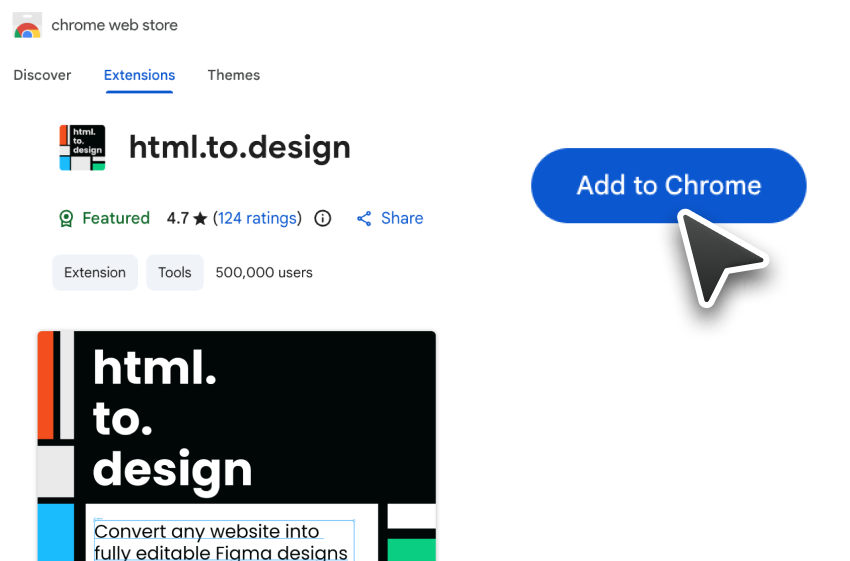
Step 1: Install the Chrome extension
Install html.to.design from the Chrome Web Store. It pins to your Chrome toolbar.
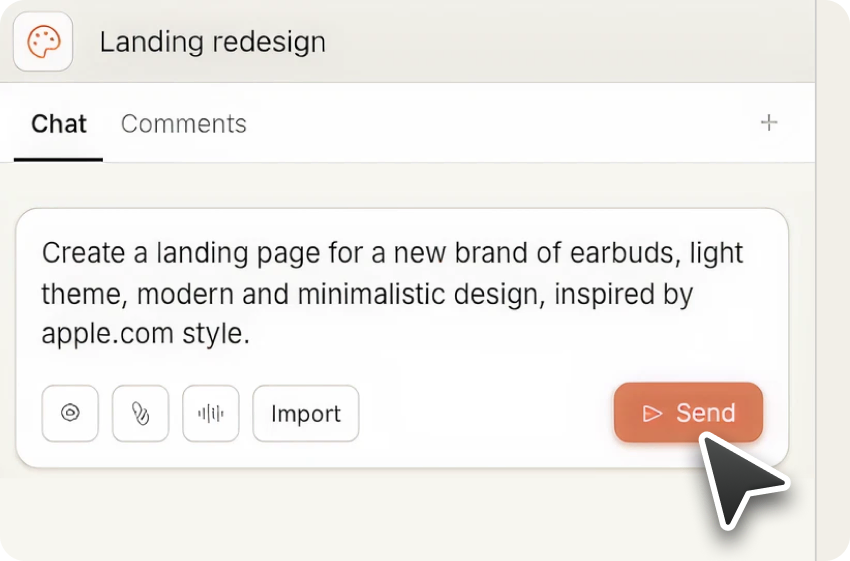
Step 2: Create your design in Claude Design
Open claude.ai/design in Chrome and prompt Claude. Example: “Create a SaaS pricing page with three tiers (Starter, Pro, Enterprise), a dark theme, and purple gradient accents on the CTA buttons.”
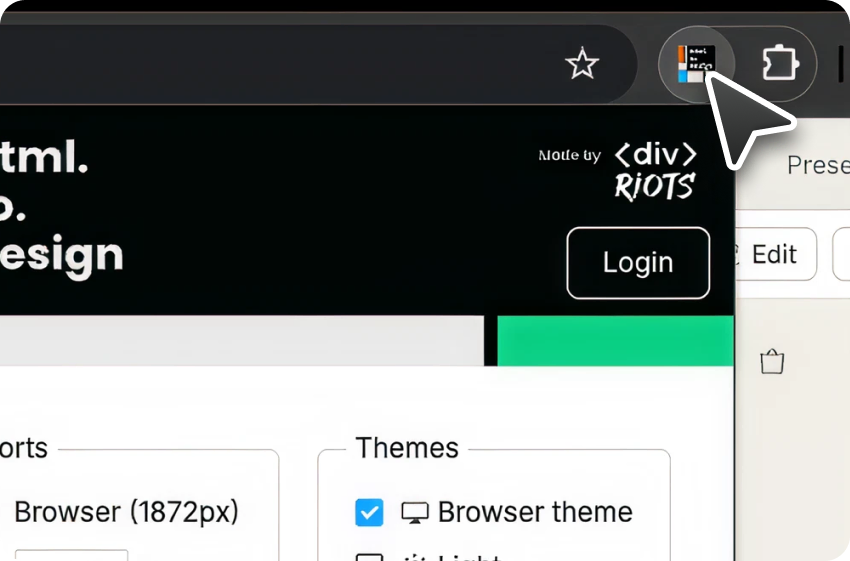
Step 3: Launch the extension
With the rendered Claude Design visible, click the html.to.design extension icon. A selection overlay activates on the page.
Step 4: Capture the full design or a section
Hover over any area — a card, a section, the full hero block — and the extension highlights the element. Click to select. Narrow the selection to grab a single component, or select the full page for the whole layout.
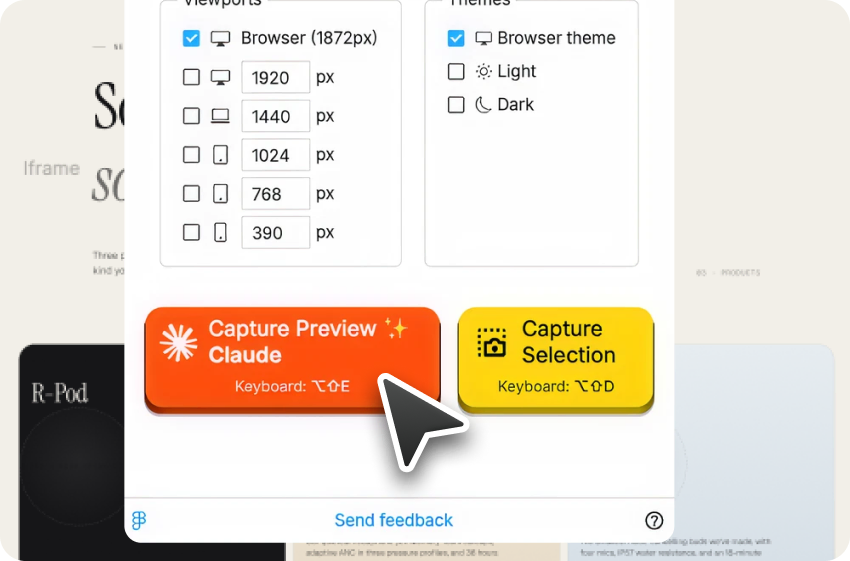
Step 5: Click ‘Copy to Clipboard’
Click the ‘Copy to Clipboard’ button in the extension popup. The selection is written to your clipboard in a format Figma reads natively.
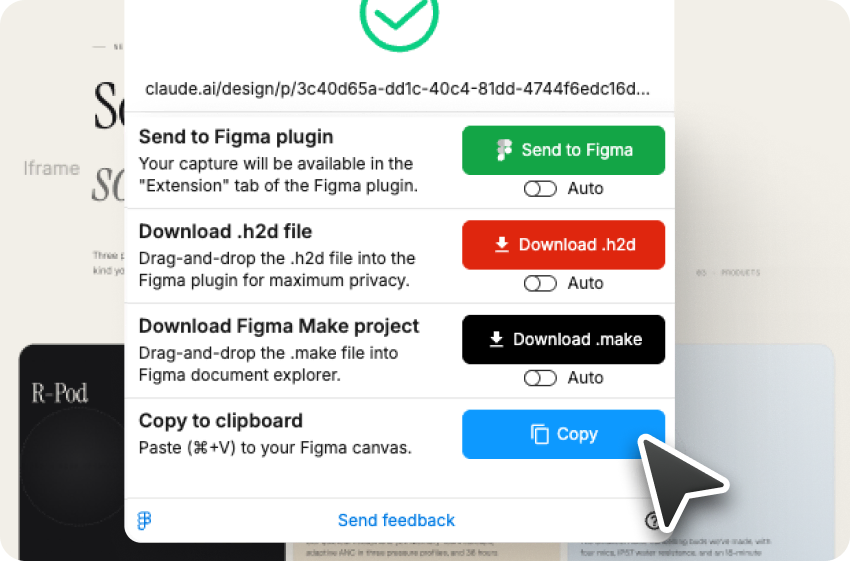
Step 6: Paste into Figma
Open your Figma file, click the canvas, and press Ctrl+V (Windows) or Cmd+V (Mac). The design lands as a layered Figma frame with auto-layout, editable text, imported colors, and structured groups.
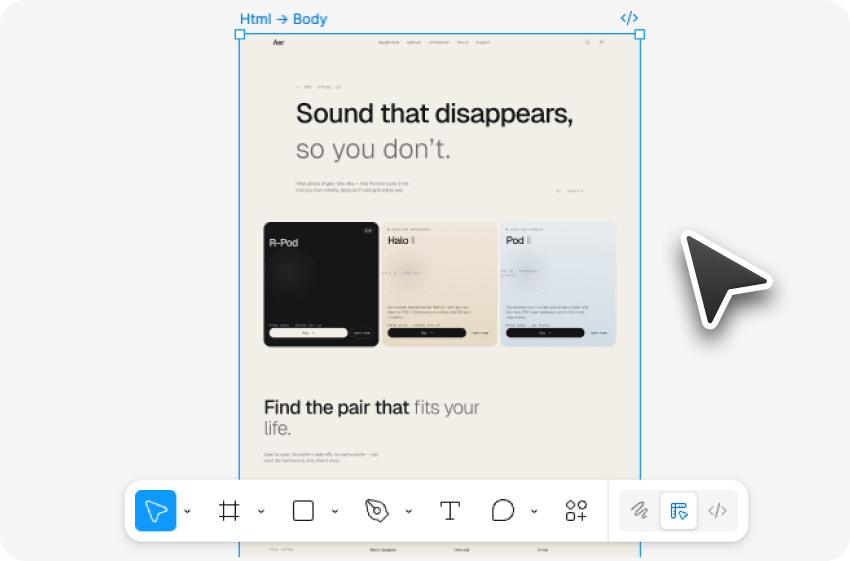
Method 2: Export HTML and use the Figma plugin
If you want to keep an HTML artifact of your design (for versioning, sharing, or reuse), export it and import through the html.to.design Figma plugin.
Step 1: Export the HTML from Claude Design
In Claude Design, open the export menu and choose Standalone HTML. Save the file locally.
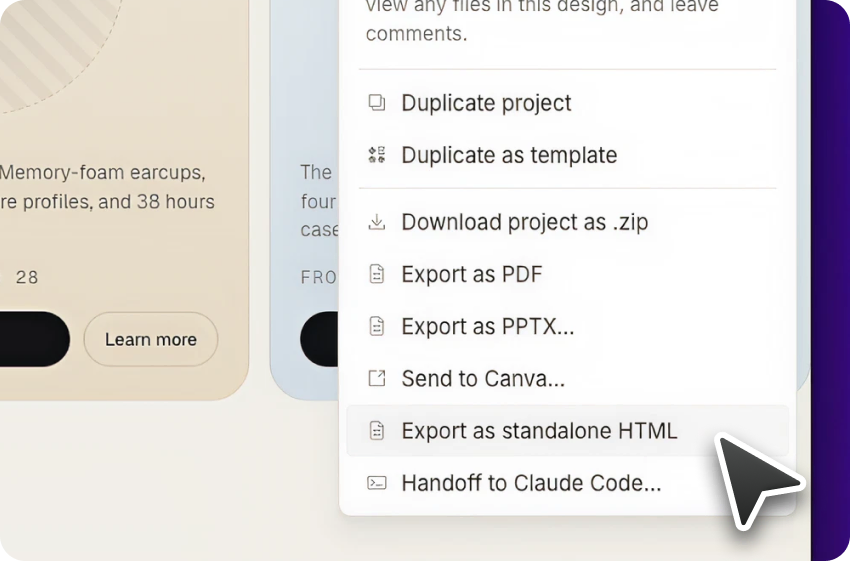
Step 2: Open the html.to.design plugin in Figma
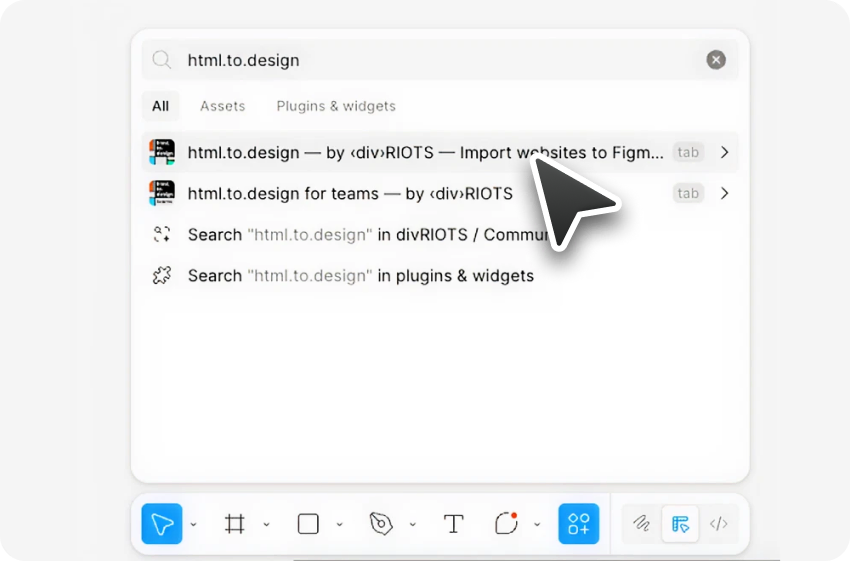
In Figma: Plugins → html.to.design. The plugin window opens on your canvas.
Step 3: Import the HTML
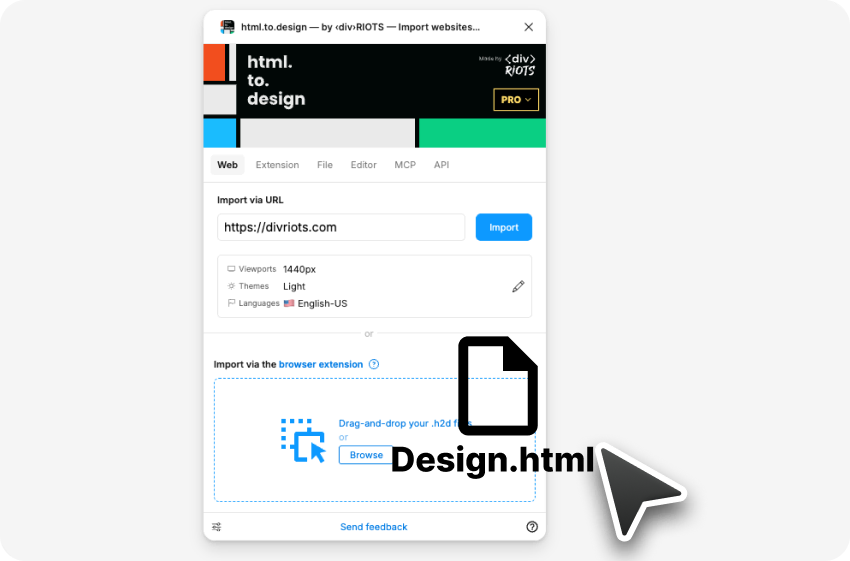
You have two options inside the plugin:
- Drop the file: Drag the exported
.htmlfile directly into the plugin drop zone.
OR
- Paste the code: Open the HTML file in a text editor, copy the source, switch to the plugin’s raw HTML tab, and paste.
Either way, the plugin parses the HTML and renders the design into Figma as structured layers.
Use cases
- Rapid first-draft generation. Prompt Claude Design for a layout, paste into Figma, refine in minutes instead of starting from a blank frame.
- Component harvesting. Capture a single card, pricing block, or hero and paste it as a reusable Figma component.
- Marketing collateral refinement. Generate a landing page or campaign visual in Claude Design, import into Figma, pass to designers for polish.
- Product wireframes into design files. Product managers sketch feature flows in Claude Design, import into Figma, hand off to the design team.
Start importing from Claude Design to Figma
The html.to.design Chrome extension and new ‘Copy to clipboard’ feature is the shortest path from Claude Design to Figma: go from browser to canvas with a simple Ctrl+V. For versioned HTML artifacts, use the export-HTML path into the html.to.design Figma plugin.
Give it a try!
Related guides
- Every way to import Claude AI designs into Figma
- From Claude Code to Figma
- From Claude to Figma via MCP
FAQ
Q: Are the imported Claude Design layers actually editable in Figma?
A: Yes. The conversion produces structured Figma frames with auto-layout, editable text, local color styles, and separate image layers — the same layer types you’d create manually in Figma.
Q: How are fonts handled?
A: html.to.design preserves font information during the conversion. Google Fonts and standard web-safe typefaces will instantly render in Figma. If you’re using a less common font, you may need to install it locally in Figma after the import.
Q: Can I capture just a section of my Claude Design page?
A: Yes. The html.to.design extension comes with a built-in selection tool that lets you capture only a specific area of the page — perfect for when you only want to pull in a specific component rather than the whole layout.