From Google AI Studio to Figma
If you’ve ever created a layout in AI Studio and thought, “Great — now let me polish this in Figma,” you already know the problem: getting those two worlds to talk to each other isn’t straightforward.
The problem? Figma does not natively support importing designs from AI Studio. There is no direct export option, no built-in integration, and no way to transfer your AI-generated UI without manually recreating it layer by layer.
The html.to.design Chrome extension solves this. It auto-detects AI Studio and lets you import your generated UI directly into Figma as fully editable layers — no screenshots, no manual rebuilding, no copy-pasting code.
What is Google AI Studio?
Google AI Studio is a browser-based development environment for prototyping with Google’s Gemini AI models. Designers and developers use it to generate UI layouts, web pages, and application interfaces through natural language prompts. The platform renders live previews of generated designs, making it useful for rapid ideation and prototyping.
Quick Guide
- Open AI Studio and generate your UI design with a text prompt
- Open Figma and run the html.to.design plugin
- In the AI Studio tab, click the html.to.design Chrome extension icon
- The extension auto-detects AI Studio—select “send directly to figma plugin” and click Import
- Your design appears as editable layers in Figma, ready to customize
How to Import AI Studio to Figma: Step-by-Step
Step 1: Generate Your Design in AI Studio
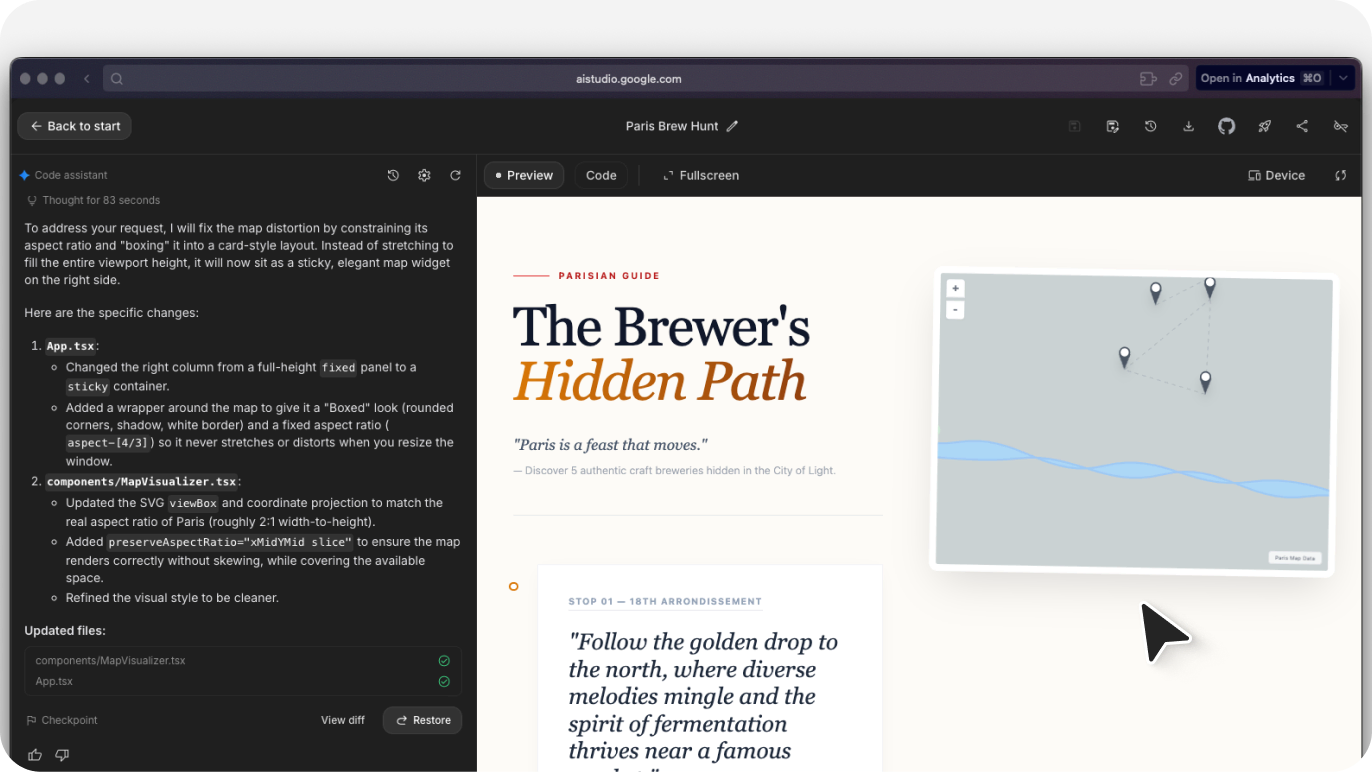
Head to AI Studio and start a new prompt. Describe the UI you want—be specific about layout, components, and style. For example:
- “Create a mobile banking app dashboard with account balance, recent transactions, and quick action buttons”
- “Design a SaaS pricing page with three tiers, feature comparison, and a dark theme”
- “Build a restaurant landing page with hero image, menu preview, and reservation form”
AI Studio processes your prompt and generates a responsive layout complete with structure, placeholder copy, and basic styling. The more specific your prompt, the closer the output matches your vision.
Step 2: Launch the html.to.design Extension
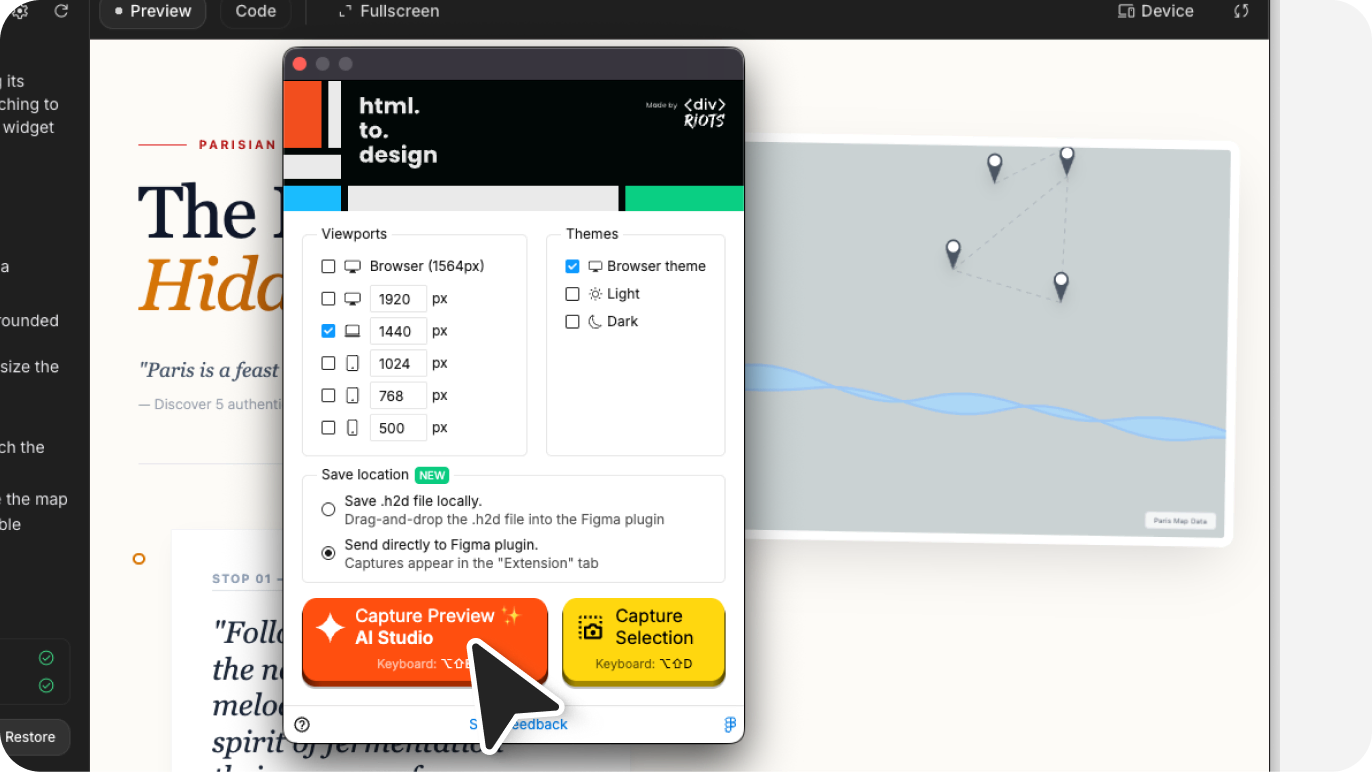
With your design preview open in AI Studio, click the html.to.design extension icon in your Chrome toolbar.
The extension automatically recognizes AI Studio—no extra configuration needed. This auto-detection feature works because html.to.design has built-in support for AI Studio and 14+ other AI tools including ChatGPT, Gemini, Bolt, Lovable, and v0.
Step 3: Import to Figma
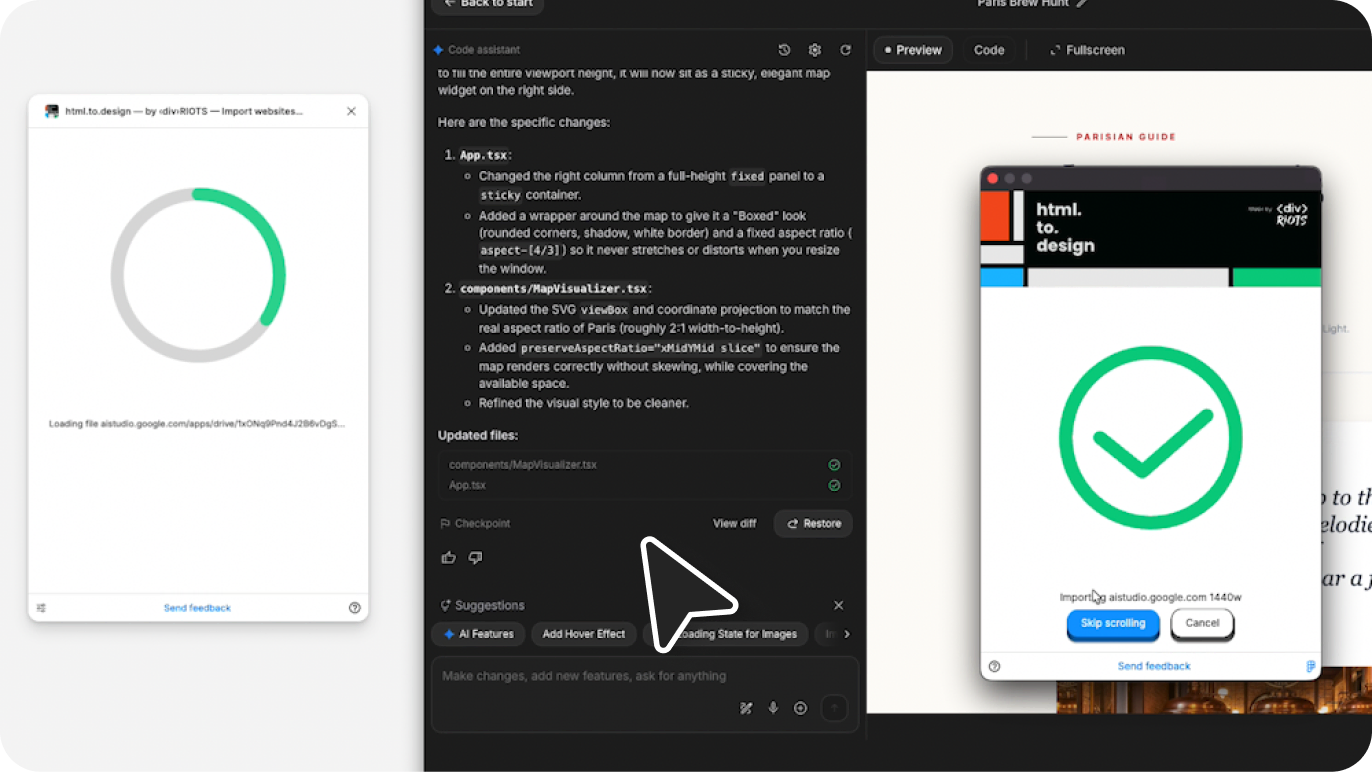
Click Import in the extension. You can choose your preferred viewport width (desktop, tablet, or mobile).
The extension captures your AI-generated design and sends it directly to Figma. No file downloads, no copy-pasting code, no intermediate steps—just a direct transfer from AI Studio to your Figma canvas.
Step 4: Edit in Figma
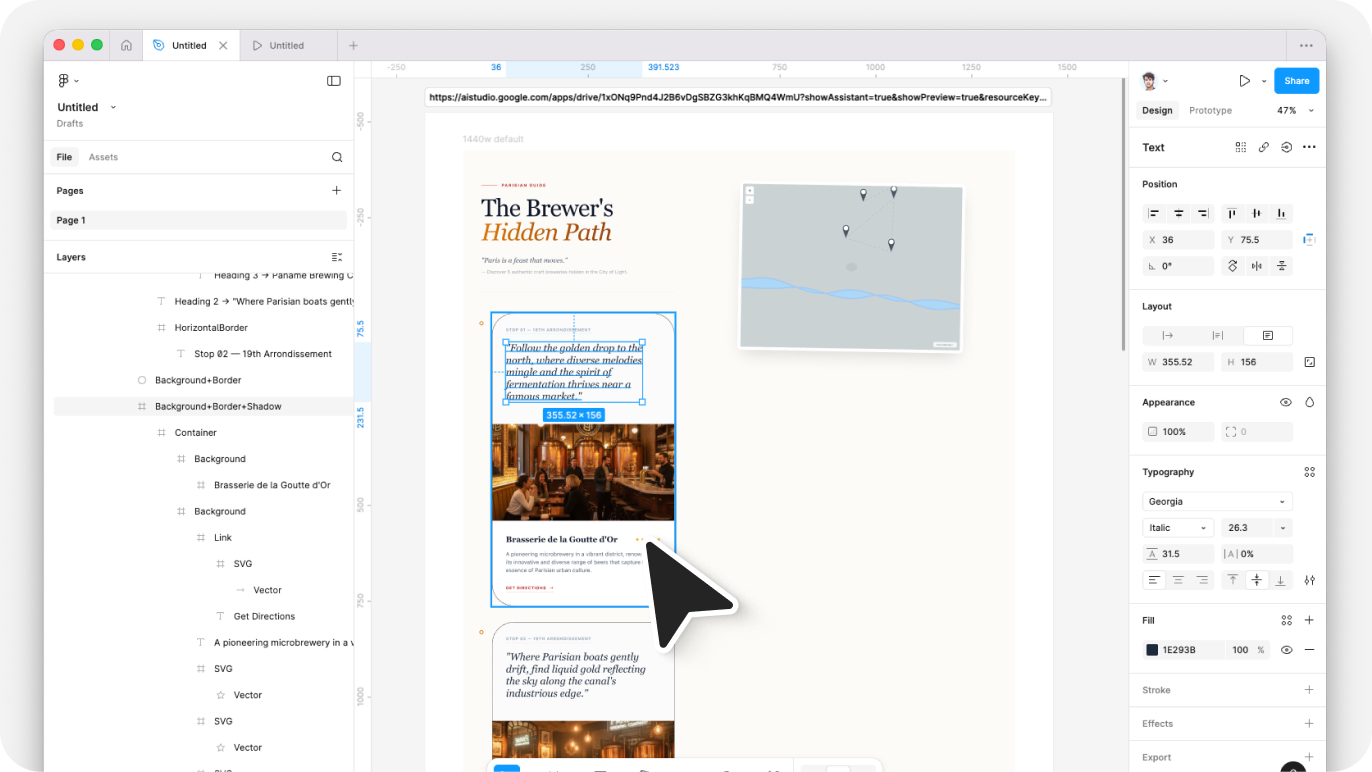
Open Figma and run the html.to.design plugin. Your imported design appears under the Extension tab. Click the import icon, and your AI Studio creation becomes a fully layered, editable Figma file.
From here, it’s all yours. Every element is editable: text layers you can update, frames you can resize, colors you can swap. Apply your brand colors, replace placeholder content, swap in your design system components, adjust spacing, and prepare for developer handoff—all in your familiar Figma workflow.
Alternative Method: Copy-Paste Code
If you prefer not to use the Chrome extension, html.to.design offers an alternative workflow using the Editor tab:
- In AI Studio, access the generated code (HTML/CSS) for your design
- Copy the code to your clipboard
- Open the html.to.design Figma plugin
- Select the Editor tab
- Paste the code and click Import
This method works for any HTML output, not just AI Studio. However, the auto-detect method is faster for AI Studio specifically since it requires fewer steps.
What Gets Imported into Figma?
When you import AI Studio designs into Figma using html.to.design, here is what you can expect:
Layout and Structure The spatial relationships between elements are preserved. Frames, containers, and sections maintain their positioning and nesting hierarchy. Auto-layout properties are applied where appropriate, making it easy to resize and adjust components.
Typography Text content imports as editable text layers, not flattened images. Font families, sizes, weights, and line heights are preserved. You can immediately edit any text directly in Figma without retyping.
Colors and Styling Background colors, borders, shadows, border-radius, and other visual styles transfer accurately. The design you see in AI Studio preview matches what appears in Figma.
Images and Graphics Raster images embedded in the AI-generated design import as image fills. Vector elements render as vector shapes when possible, keeping them scalable.
Layer Organization html.to.design creates a clean layer structure that mirrors the HTML structure of your AI-generated design. Elements are logically grouped, making it straightforward to select and edit specific components.
Why Import AI Studio Designs into Figma?
Skip the Blank Canvas AI Studio does the initial layout work. Instead of starting from zero, you get a working UI in seconds that you can immediately build on. This is particularly valuable during early project phases when you need to explore multiple directions quickly.
Pixel-Perfect Imports html.to.design captures the actual rendered output, not a screenshot. Your imported design maintains accurate spacing, typography, and structure. What you see in AI Studio is what you get in Figma.
Full Editing Control Once in Figma, every element becomes editable. Adjust fonts, colors, components, and layout exactly how you want—no locked layers or flattened images. You maintain complete control over the final design.
Rapid Iteration Generate multiple variations in AI Studio, import your favorites to Figma, and compare side-by-side. Test different approaches faster than building each from scratch. This accelerates the design exploration phase significantly.
Team Collaboration Figma’s collaboration features let you share imported designs with your team, collect feedback through comments, and iterate together in real time. Moving AI-generated designs into Figma brings them into your team’s existing workflow.
Design System Integration Once your AI-generated layout is in Figma, you can replace generic components with your established design system components. Swap placeholder buttons for your branded buttons, update colors to match your palette, and ensure consistency with your existing designs.
Perfect Use Cases
- Rapid Prototyping — Generate multiple UI concepts quickly for stakeholder reviews without investing hours in each variation. Import the top candidates to Figma and present polished options in a fraction of the time.
- Design Exploration — Use AI-generated layouts as inspiration or starting points when you’re stuck on a design direction. AI Studio can suggest layout approaches you might not have considered.
- Client Presentations — Create polished mockups fast for pitches and proposals, then refine the winning concept in Figma. Impress clients with multiple options without the usual time investment.
- Learning and Reference — Study AI-generated layouts to understand different approaches to common UI patterns. Import them to Figma to examine the structure and spacing up close.
- MVP Design — Build functional interface designs quickly for early-stage products and startup prototypes. Get to user testing faster by accelerating the design phase.
If you’re using other AI tools, check out our guides for importing from Gemini or Google Stitch.
Try It Out
- Generate a UI in AI Studio
- Capture it with html.to.design
- Refine it in Figma
Stop rebuilding AI-generated designs from scratch. With AI Studio and html.to.design, you go from prompt to editable Figma file in seconds.
AI Studio is just one of 14+ AI tools supported by html.to.design. Explore divriots.com to see all the file formats you can import into Figma.
FAQ
Q: Does Figma support importing from AI Studio directly? A: No. Figma does not natively support AI Studio imports. You need the html.to.design Chrome extension and Figma plugin to transfer designs.
Q: Does the extension work with all AI Studio outputs? A: Yes. The extension auto-detects AI Studio and captures any preview it generates, regardless of what type of UI you prompted.